 Local Panel by Nesdzo
Share Your Server
There may be times when you have to share your server – why would you trust someone by handing over all your server details? Various software programmes and methods are available for secure sharing, but most are expensive; with Local Panel Safe Share, you can share your server easily and free of charge.
Local Panel offers three different methods for sharing your server; we will explain all of them in this document, but we will continue with our example using the web terminal method.
Total Time: 15 minutes
Go to Cloud Account Tab
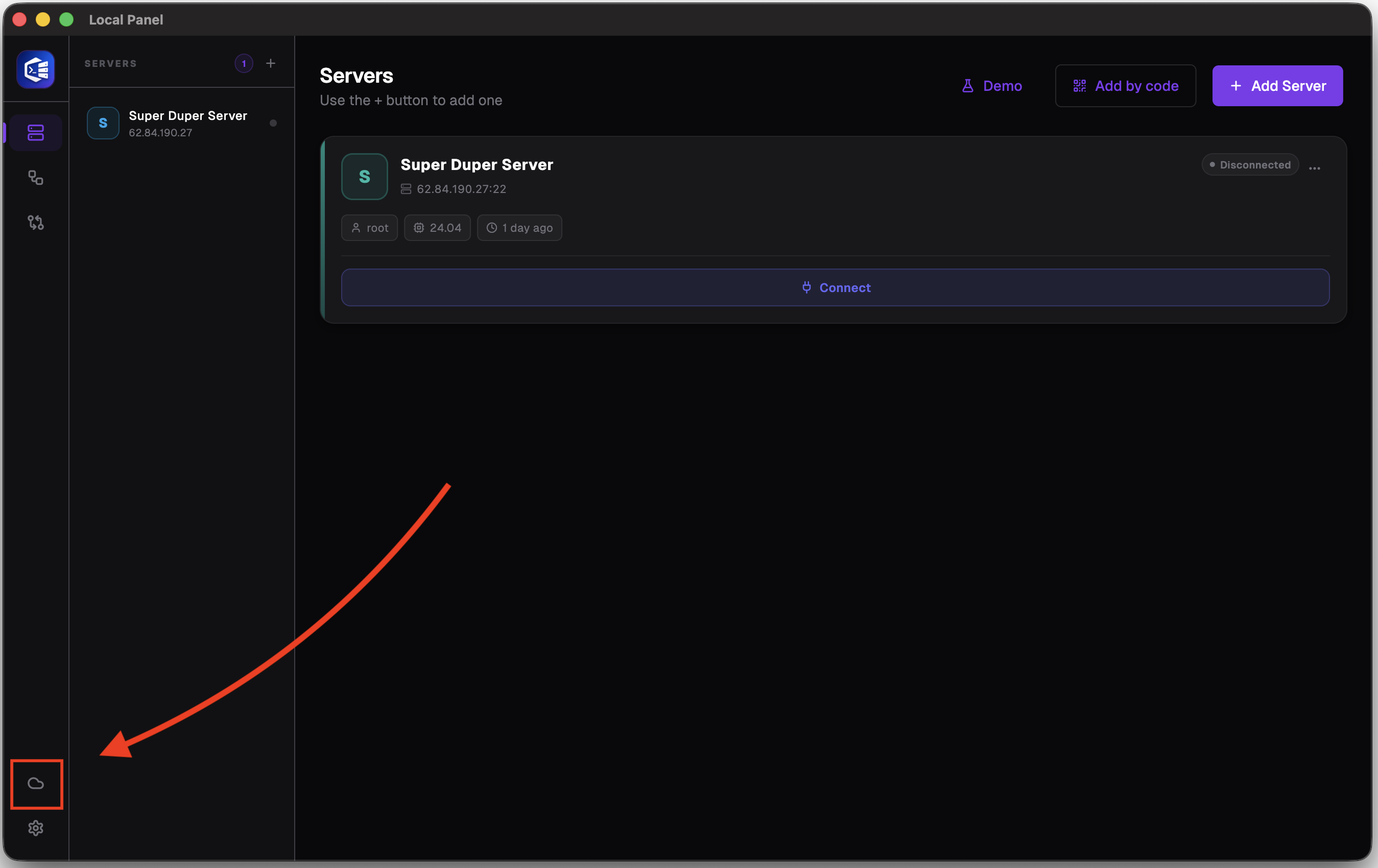
Click on the cloud icon in the bottom left-hand corner to go to the “Cloud Account” tab.
Login or Register
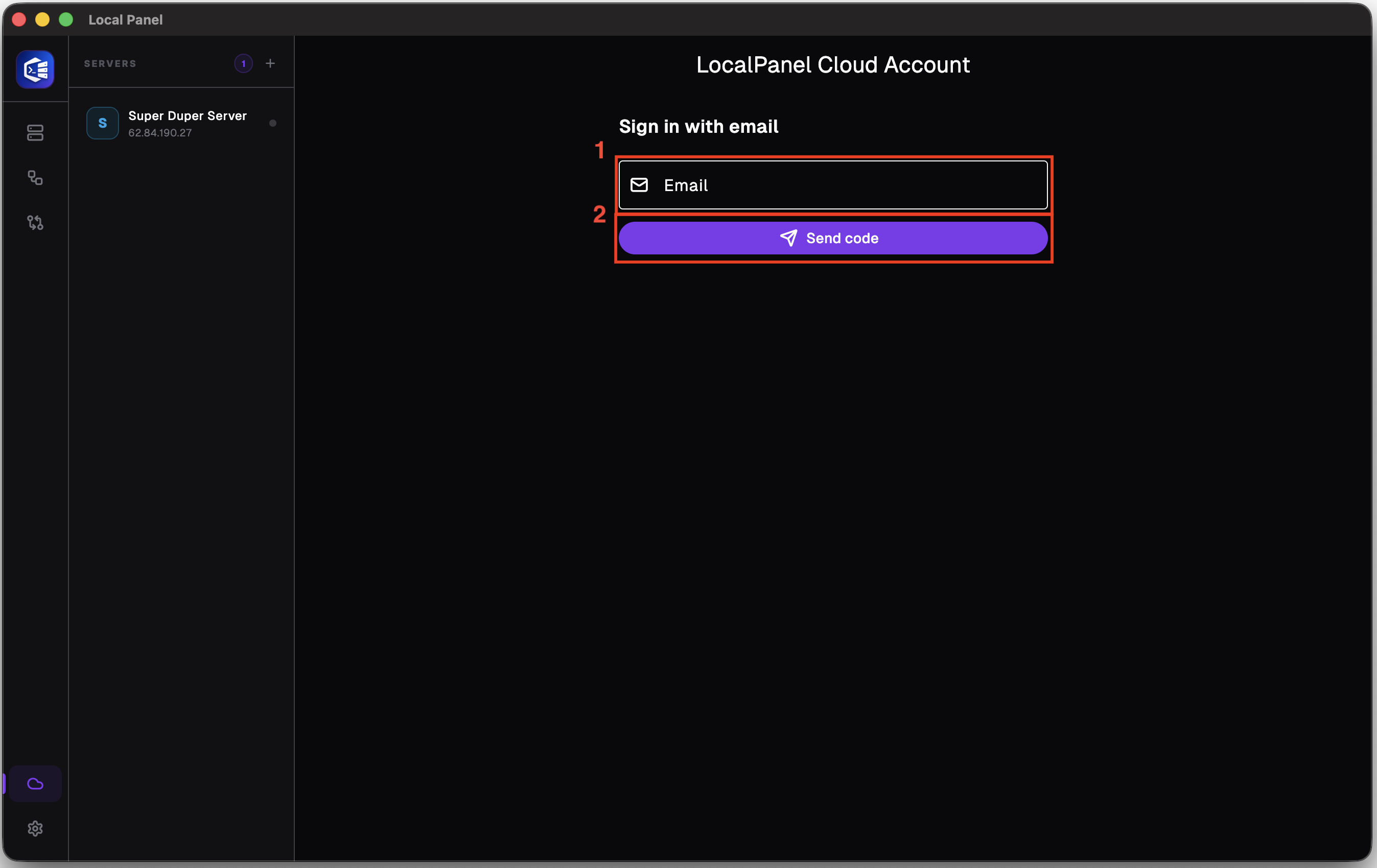
There is a single screen for logging in and registering. Enter your email address, and a code will then be sent to your email address.
Verify Email
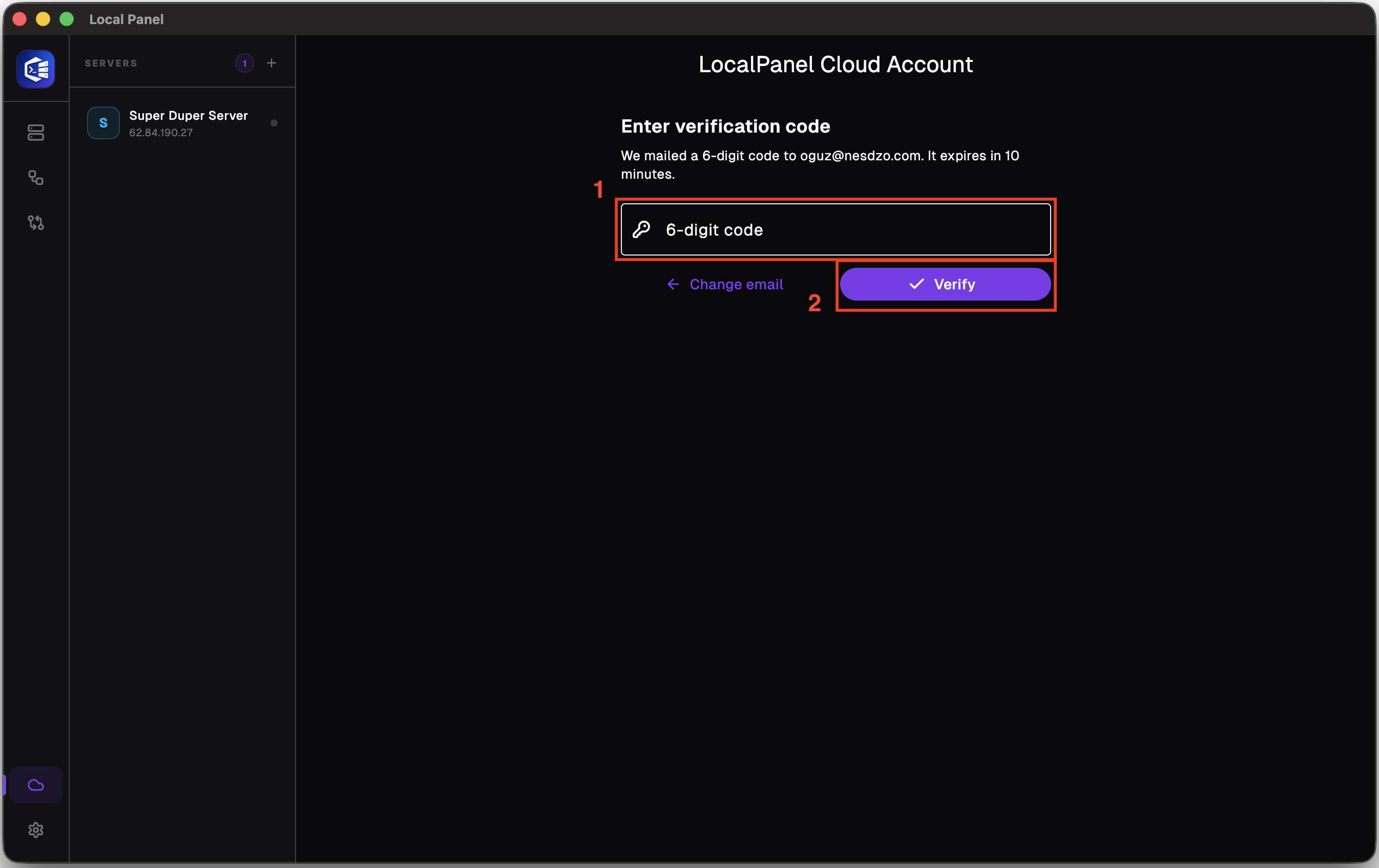
Enter the 6-digit code you received by email in the field marked ‘1’ and click the “Verify” button marked ‘2’.
Connect to Server
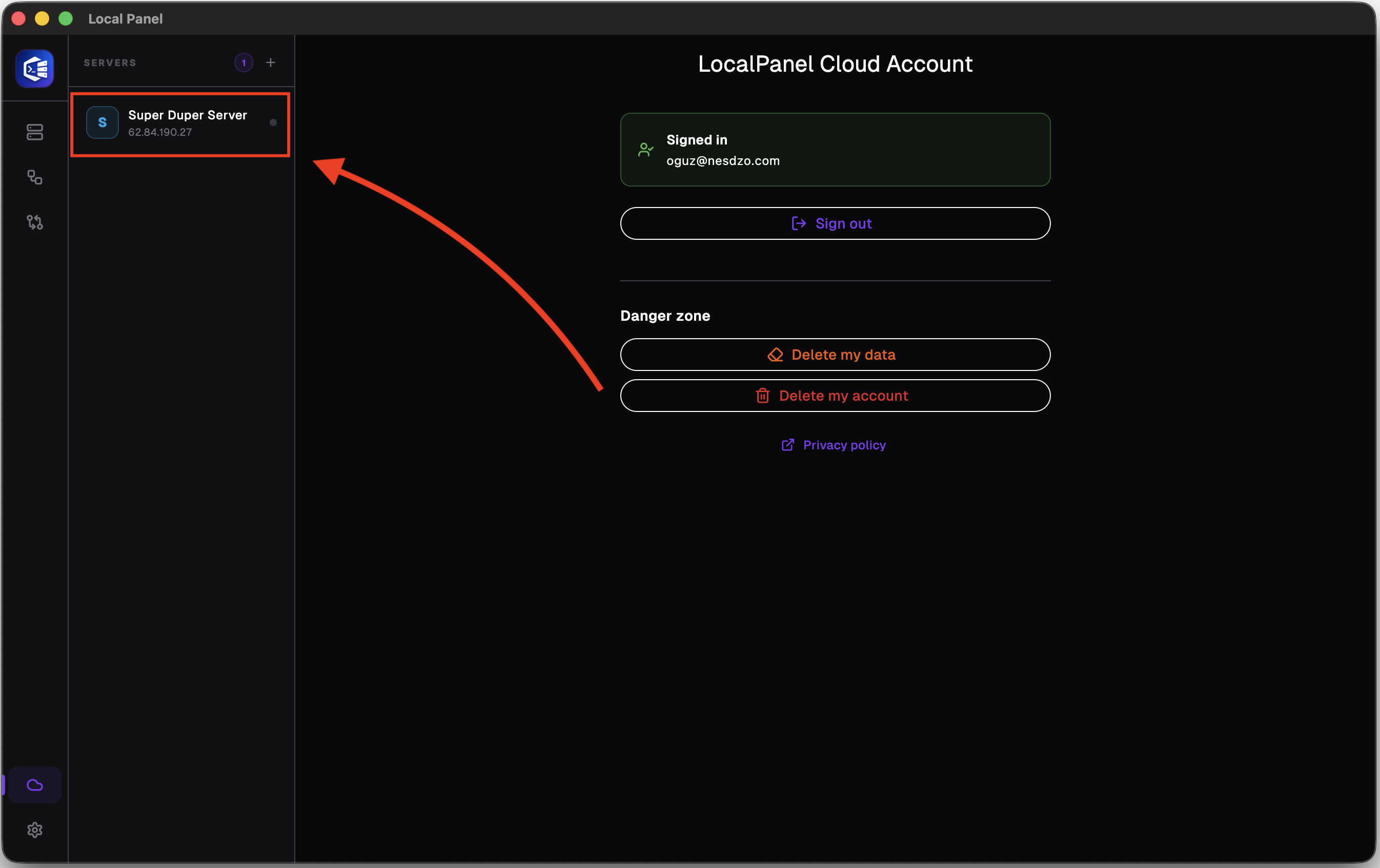
Connect to the server you wish to share
Go to Safe Share Tab
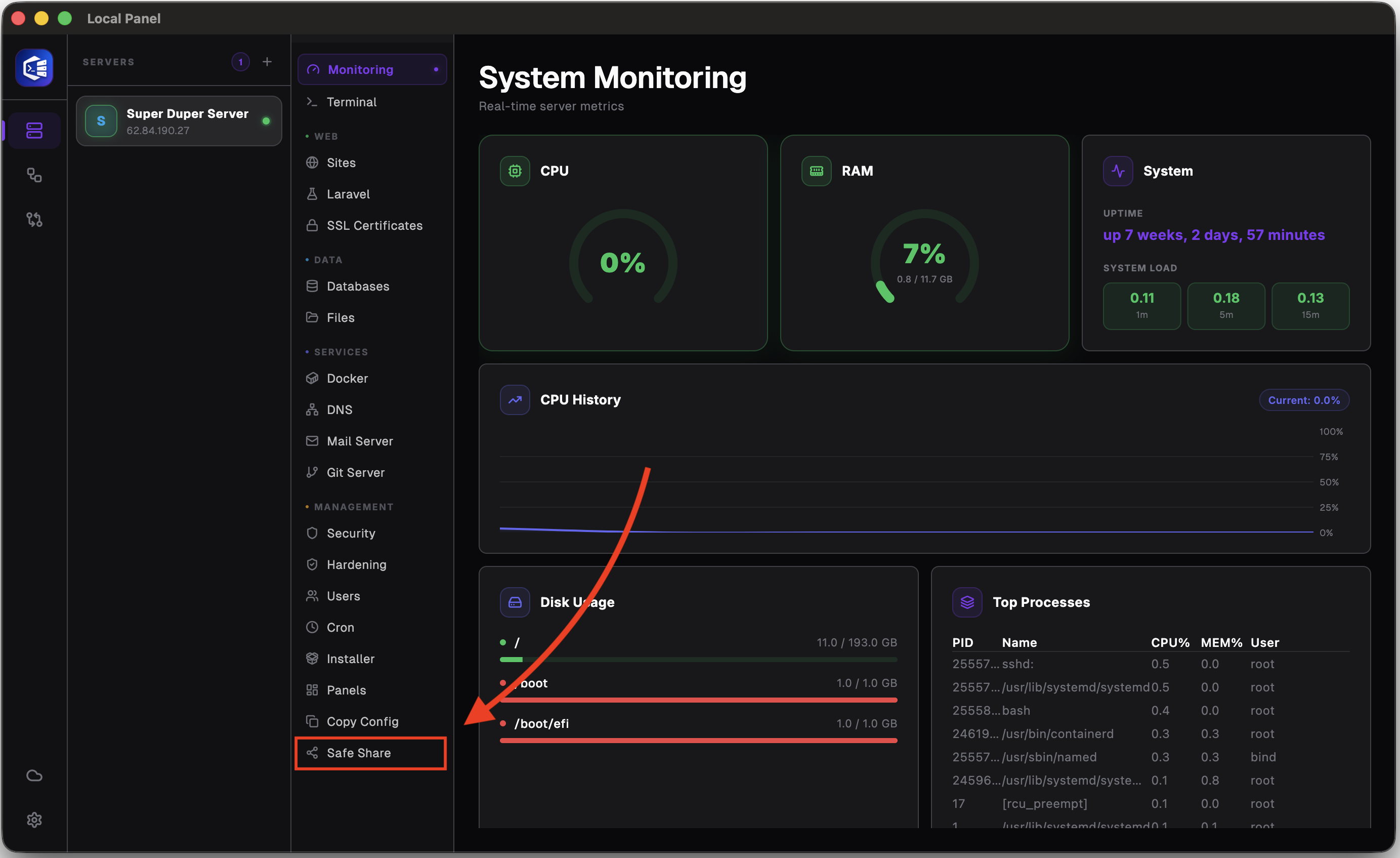
Go to the “Safe Share” tab in the server’s internal navigation.
New Share
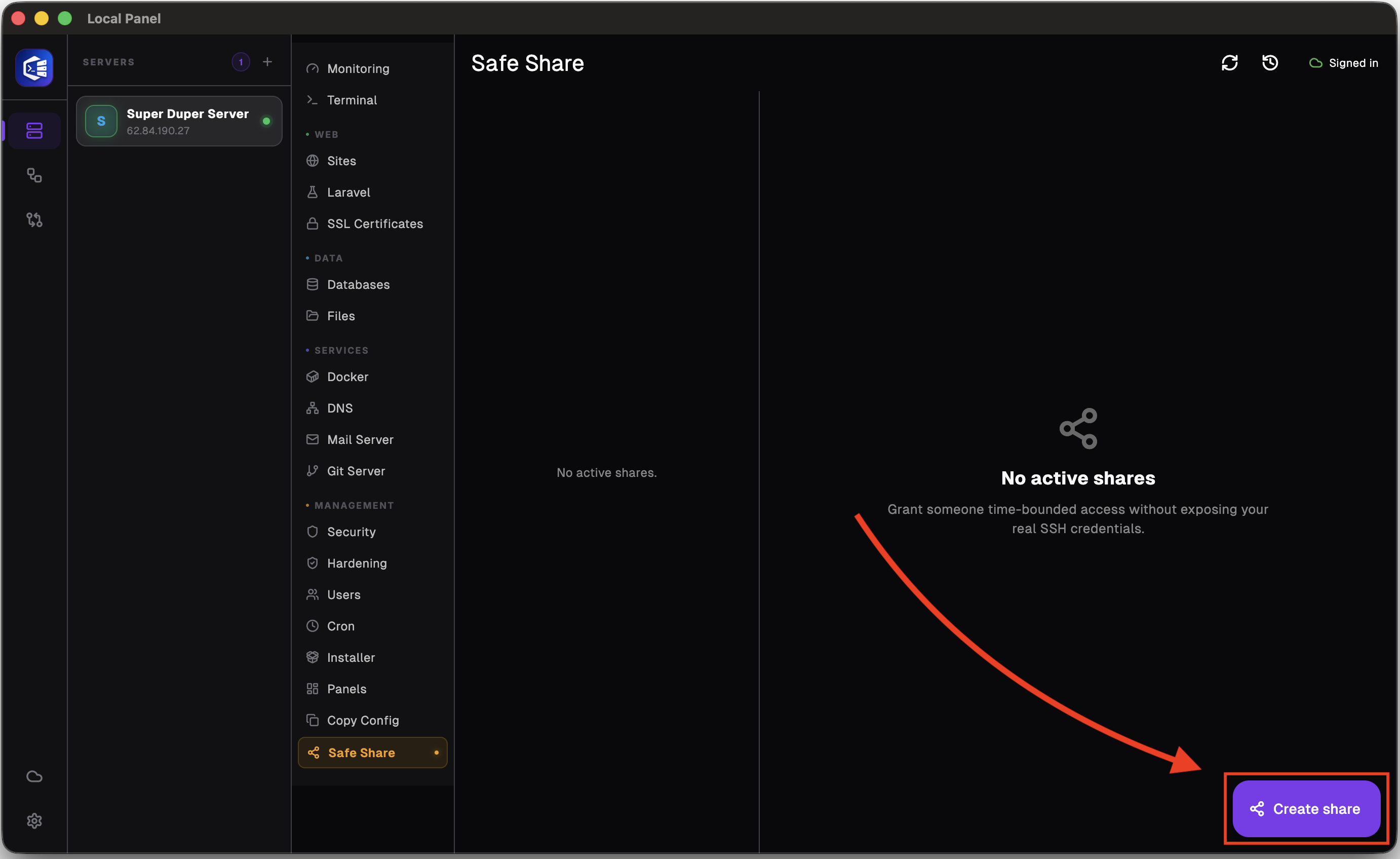
You can create a new share for free using the “Create Share” button in the bottom right-hand corner.
Local User Option
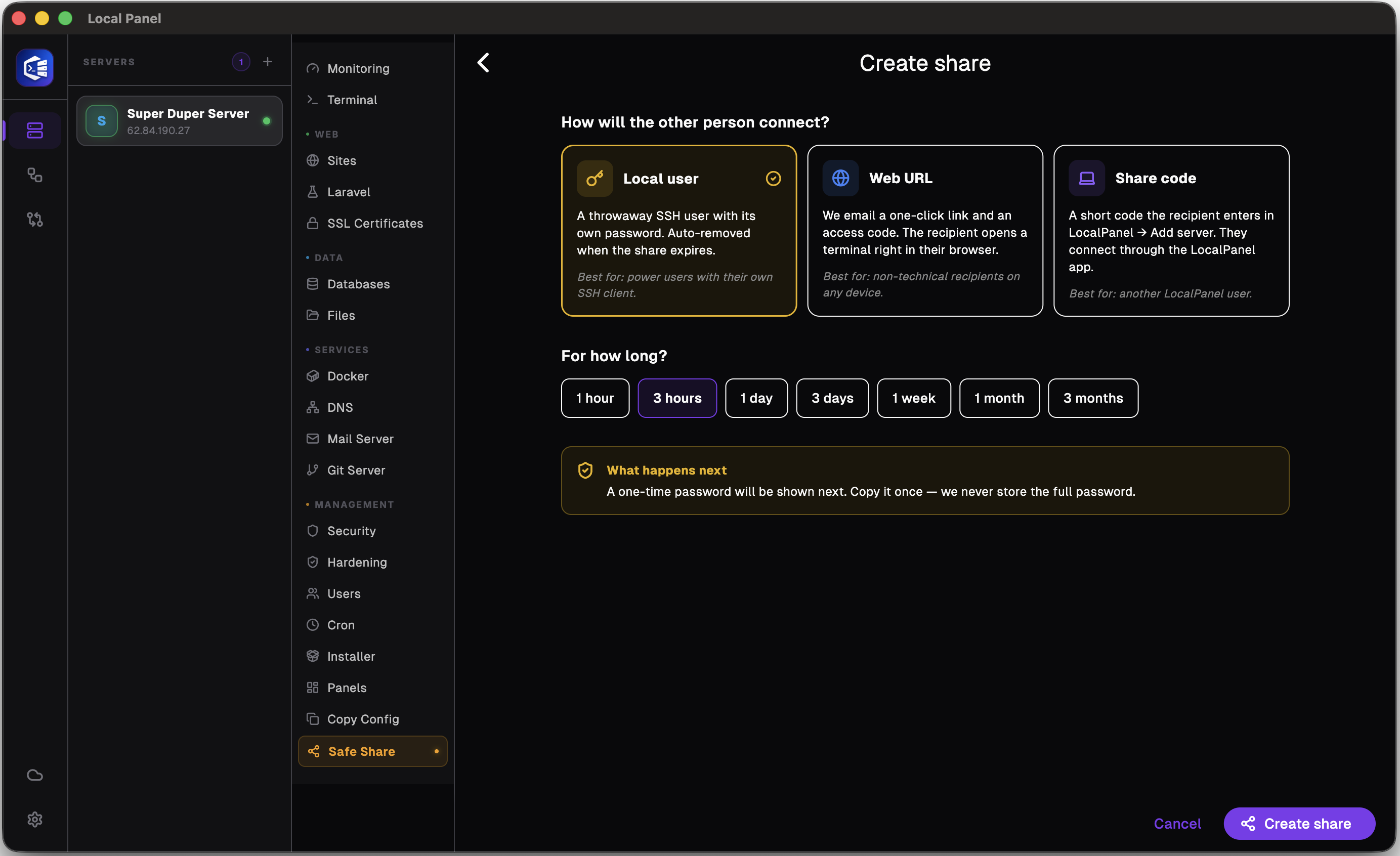
Local User creates a temporary user on your server that is deleted after a certain period of time, and provides you with the user’s username and password. You can share this information with whomever you wish, allowing them to access your server using that user account. Please bear in mind that the connection will be terminated as soon as the time limit expires, so critical operations should not be left until the last minute. Local User is an option that can be used without a Cloud Account.
Share Code Option
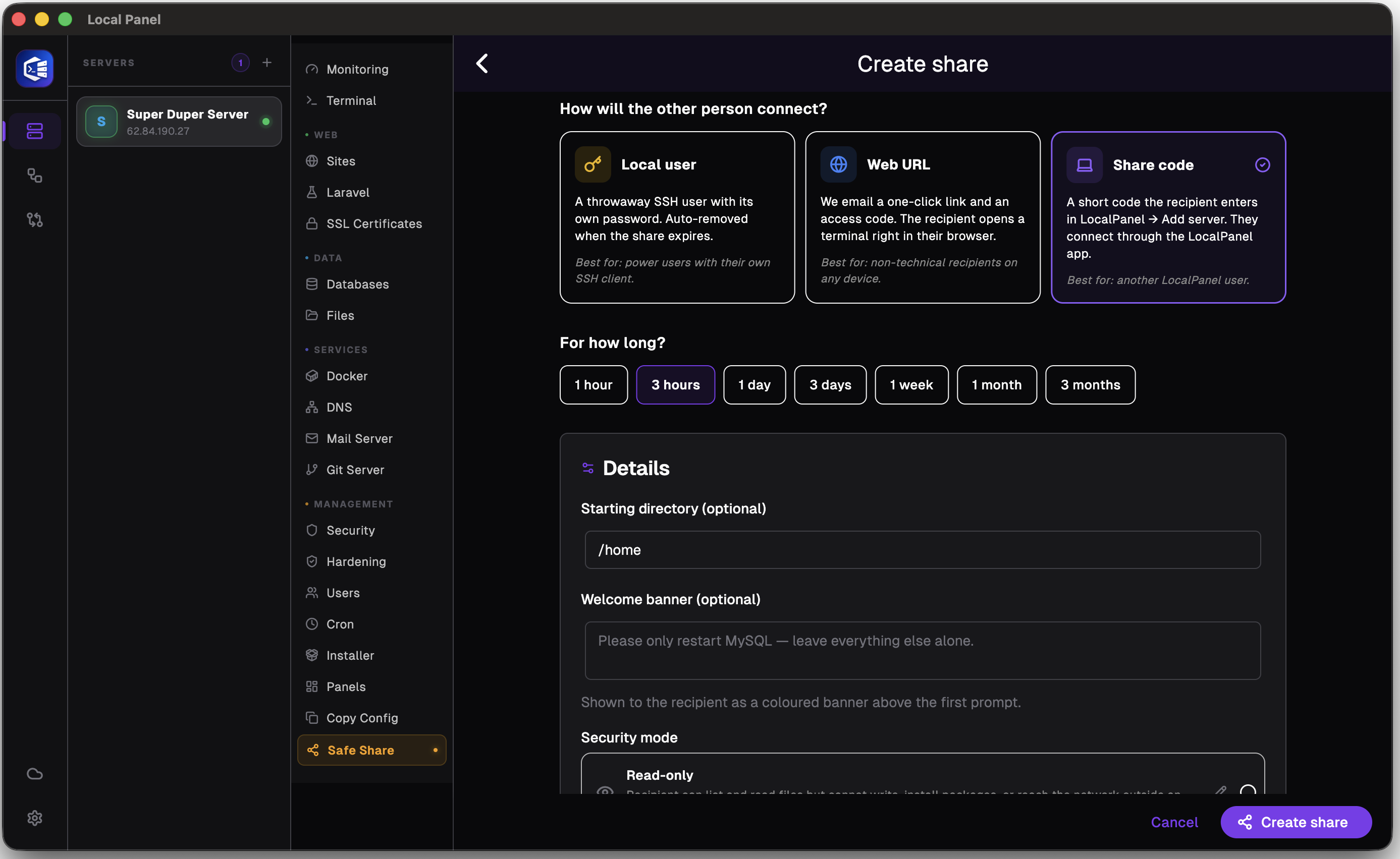
Share Code is an option you may wish to use when sharing your server with another Local Panel user. When you share via Share Code, you can view the tabs the other user has opened and the commands they have run within the application. As with Local User, once the session expires, no processes will continue to run, so critical tasks should not be left until the last minute.
Web Url Option

The ‘Web URL’ option is ideal for users who do not have a ready-made environment on their computer. A link is sent to the user of your choice, allowing them to access your server via their browser and view a terminal where they can run commands and view the results. With this method, you can also view all the commands they run as the sharing owner. As with the other options, the connection is terminated at the end of the session with the Web URL, so critical tasks should not be left until the last minute.
Fill the Fields
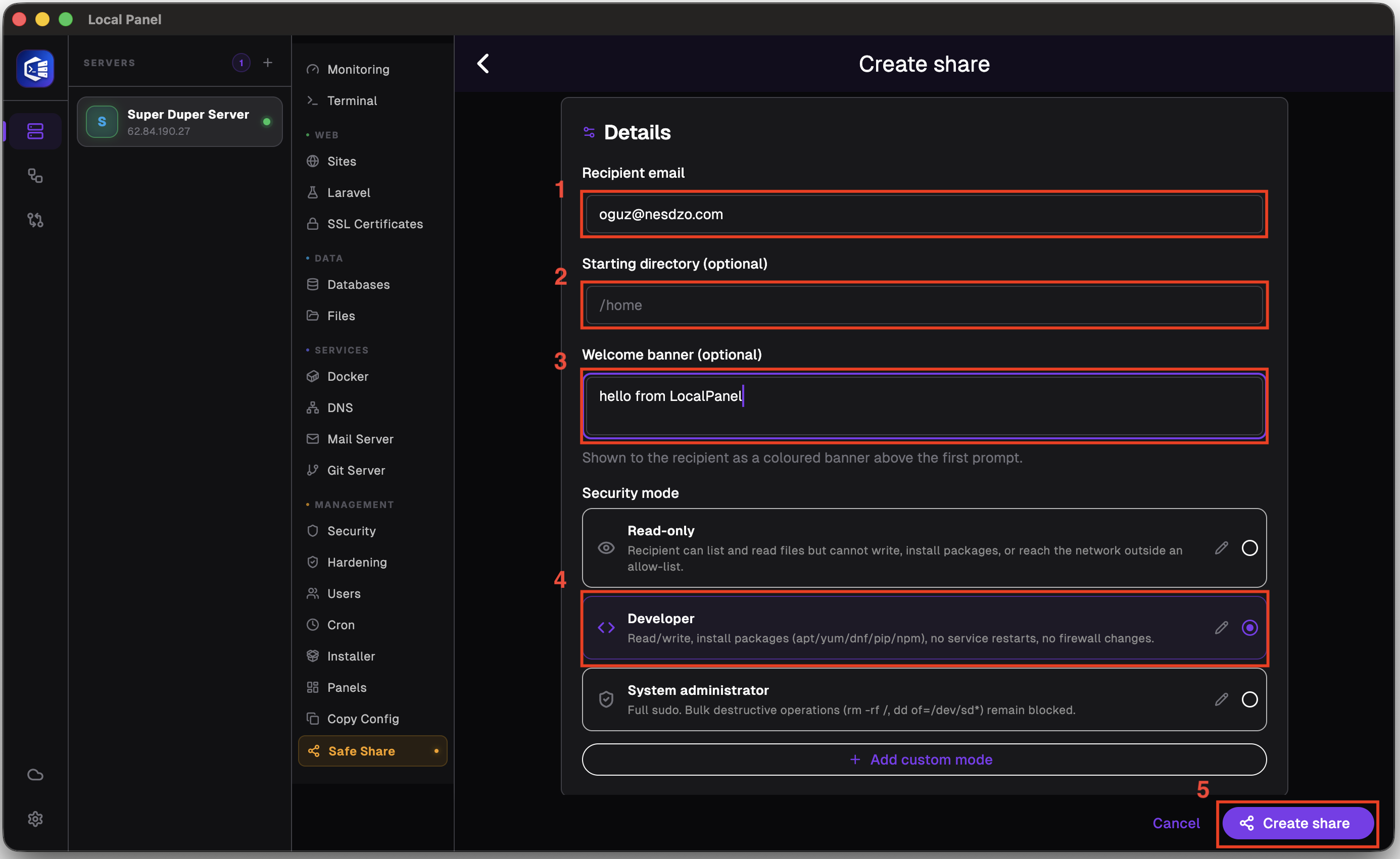
Number 1: The email address of the person you wish to grant access to
Number 2: The location of the first file you want to open when the connection is established
Number 3: The message you want to appear in the terminal when connecting to the server.
Number 4: Security modes are one of Safe Share’s key features. You can block specific commands and access a range of server security features, such as disabling file uploads and downloads. This section will not be covered in this document.
Number 5: When you click the button, an email will be sent and access will be granted.
Succesfull Share
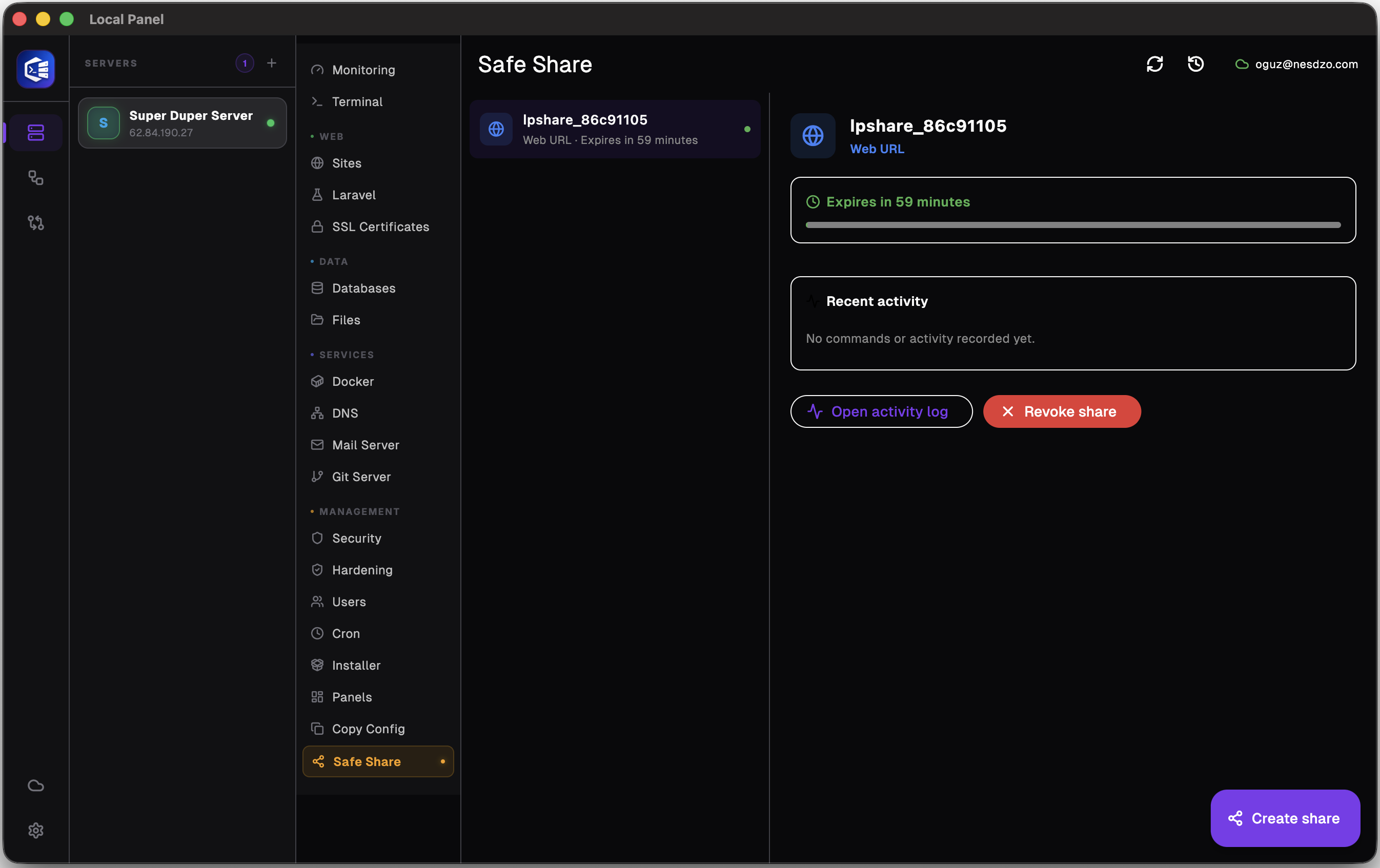
Once you have successfully shared your server, the user interface will look like this.
Email Example
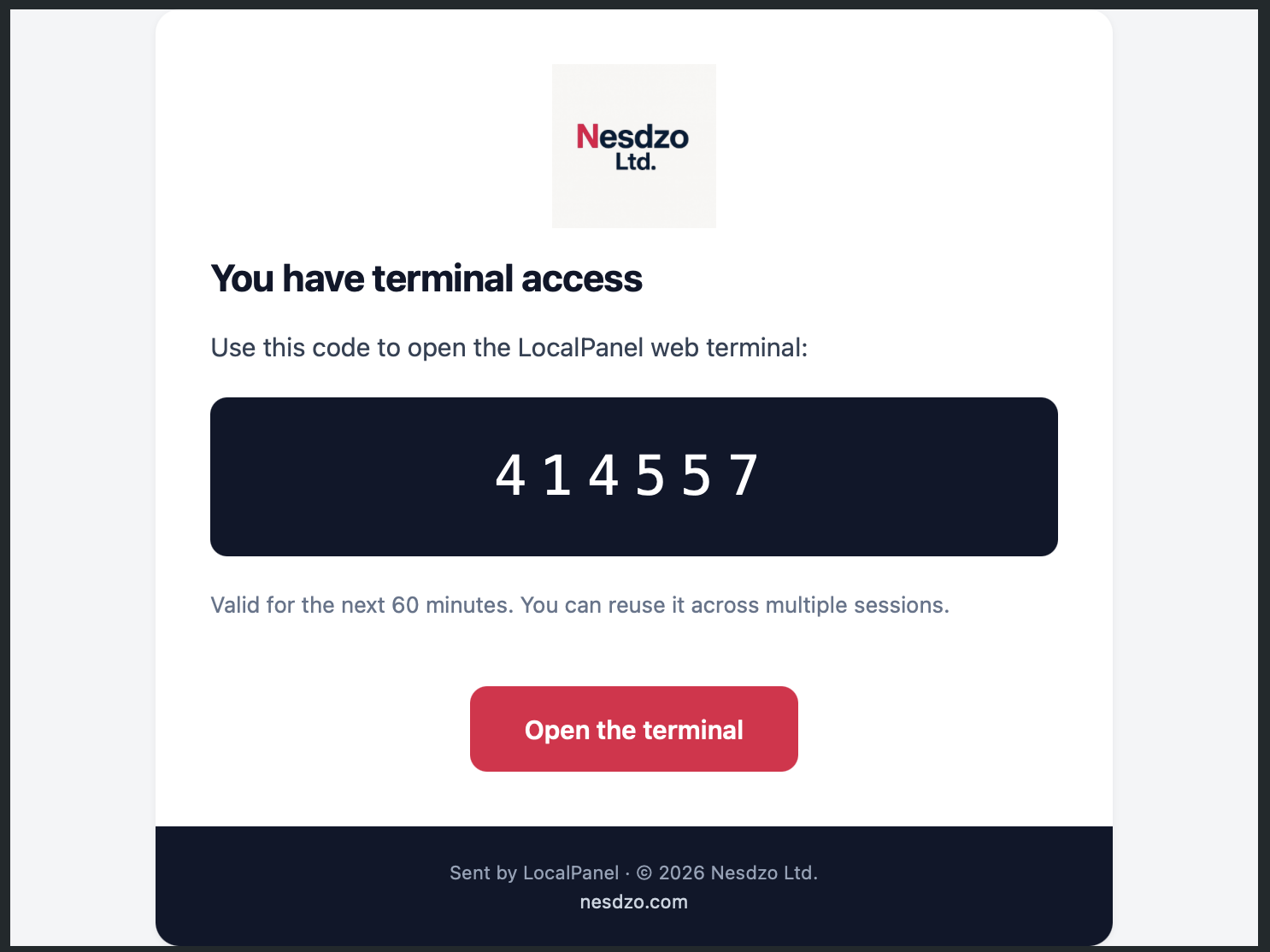
A code and a link will be sent to you by email. To access the Web Terminal, you will need to copy the code provided and then click on the link.
Connect Web Terminal
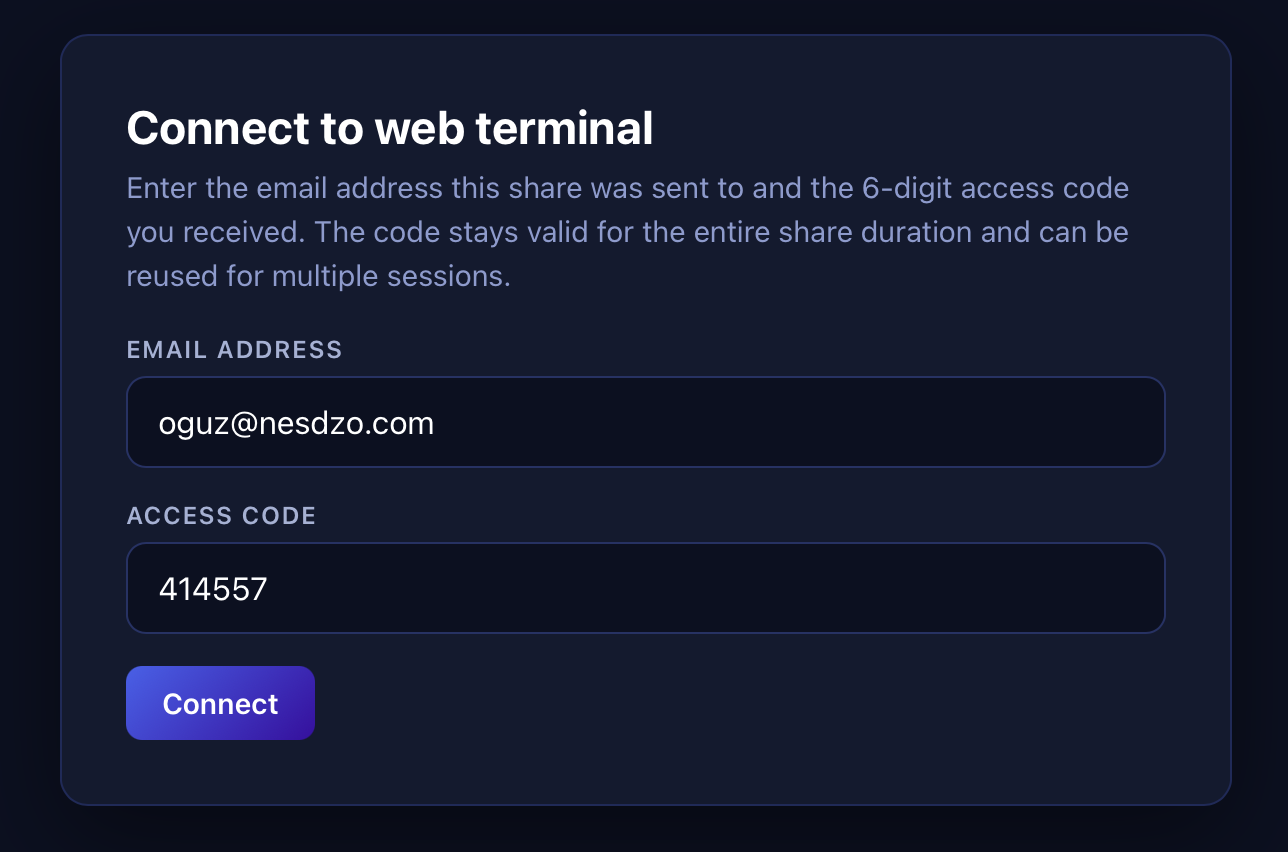
When you click on the link, enter your email address in the screen that appears, paste the code you just copied into the email you’ve just received, and then click the “Connect” button
Web Terminal
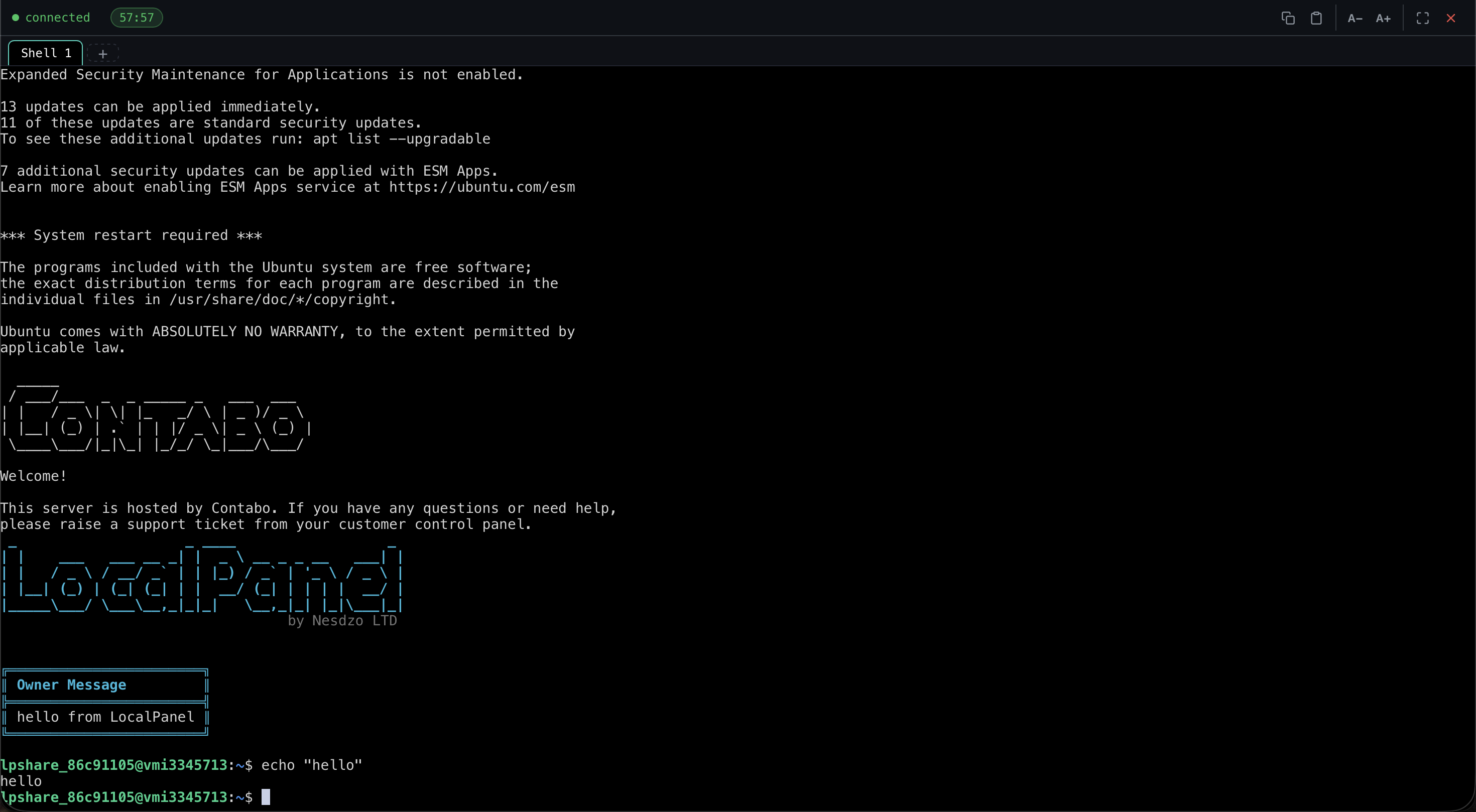
This is what the Web Terminal looks like.
Still stuck? Email contact@nesdzo.co.uk — we're happy to help.