 Local Panel by Nesdzo
Cloud Account Screen
We will introduce Cloud Account Screen, which you can use to register for or log in to Local Panel, and we will register together. You must register to be able to use Safe Share’s advanced features; if you already have an account, you must log in. There is no separate process for registering or logging in; both are managed from a single location.
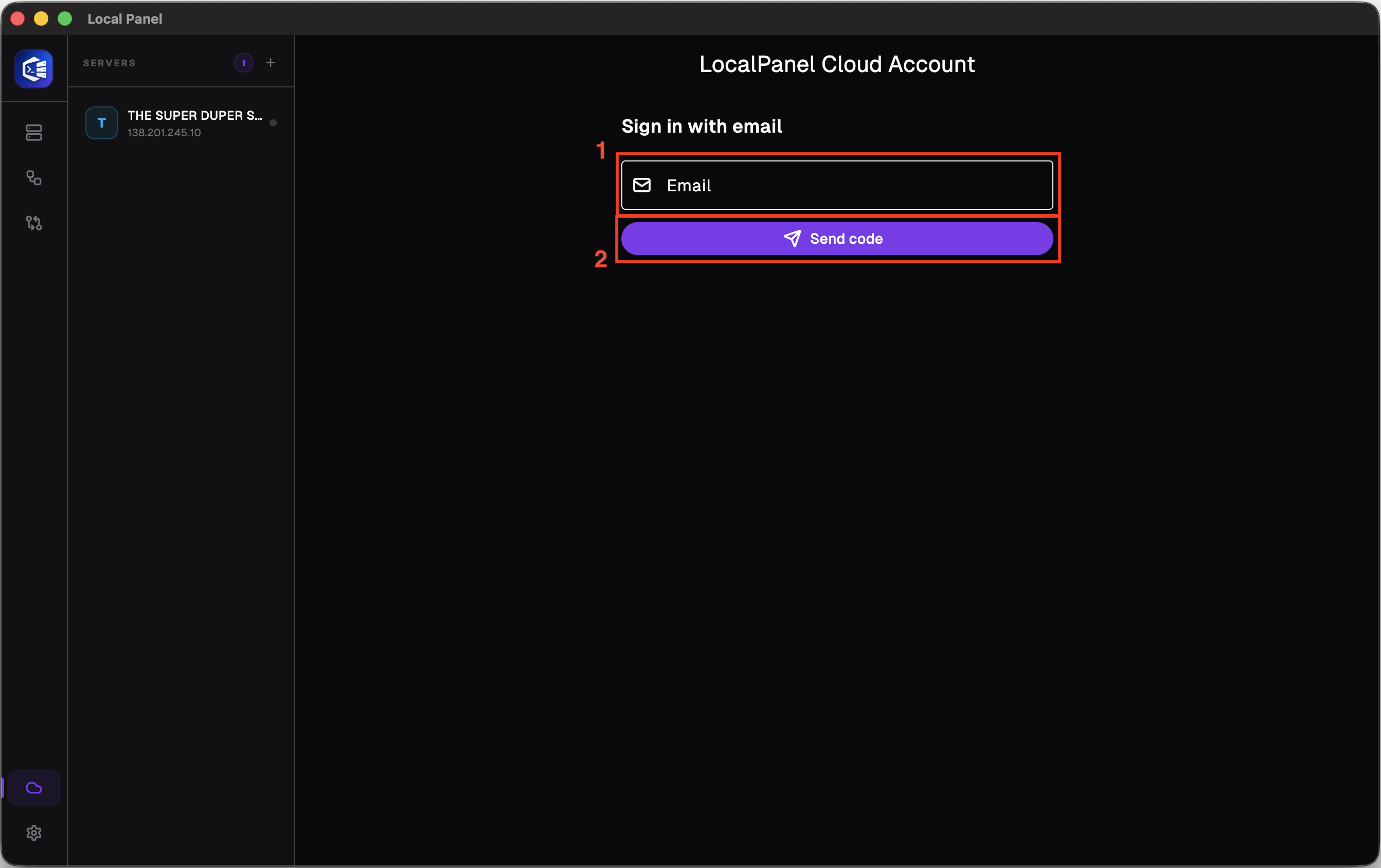
Number 1: You must enter an email address that you can access.
Number 2: You can continue by clicking the ‘Send Code’ button; when you do so, a 6-digit code valid for 10 minutes will be sent to your email address.
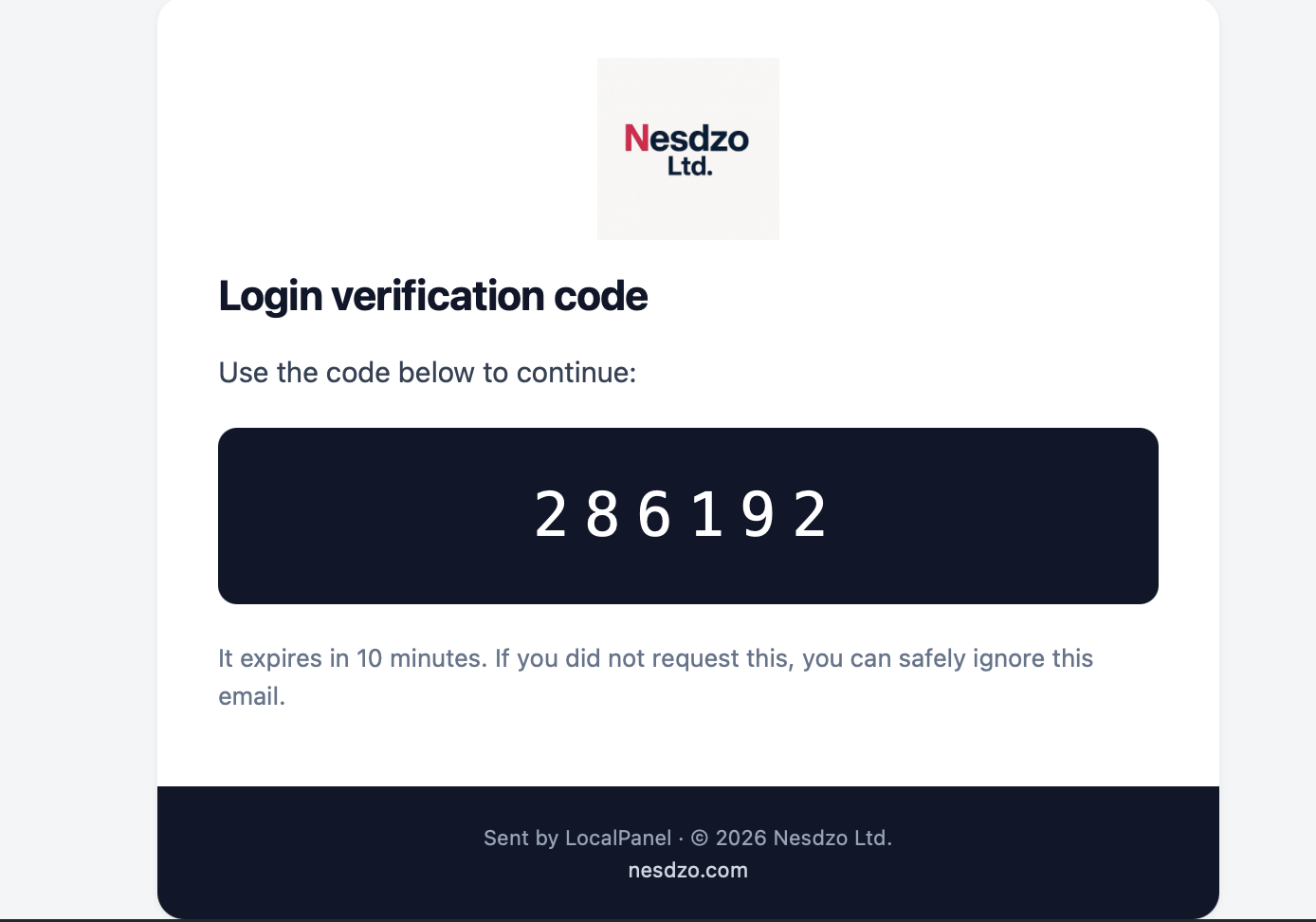
The email you receive should look as shown in the image. You can copy your code from here or type it in manually.
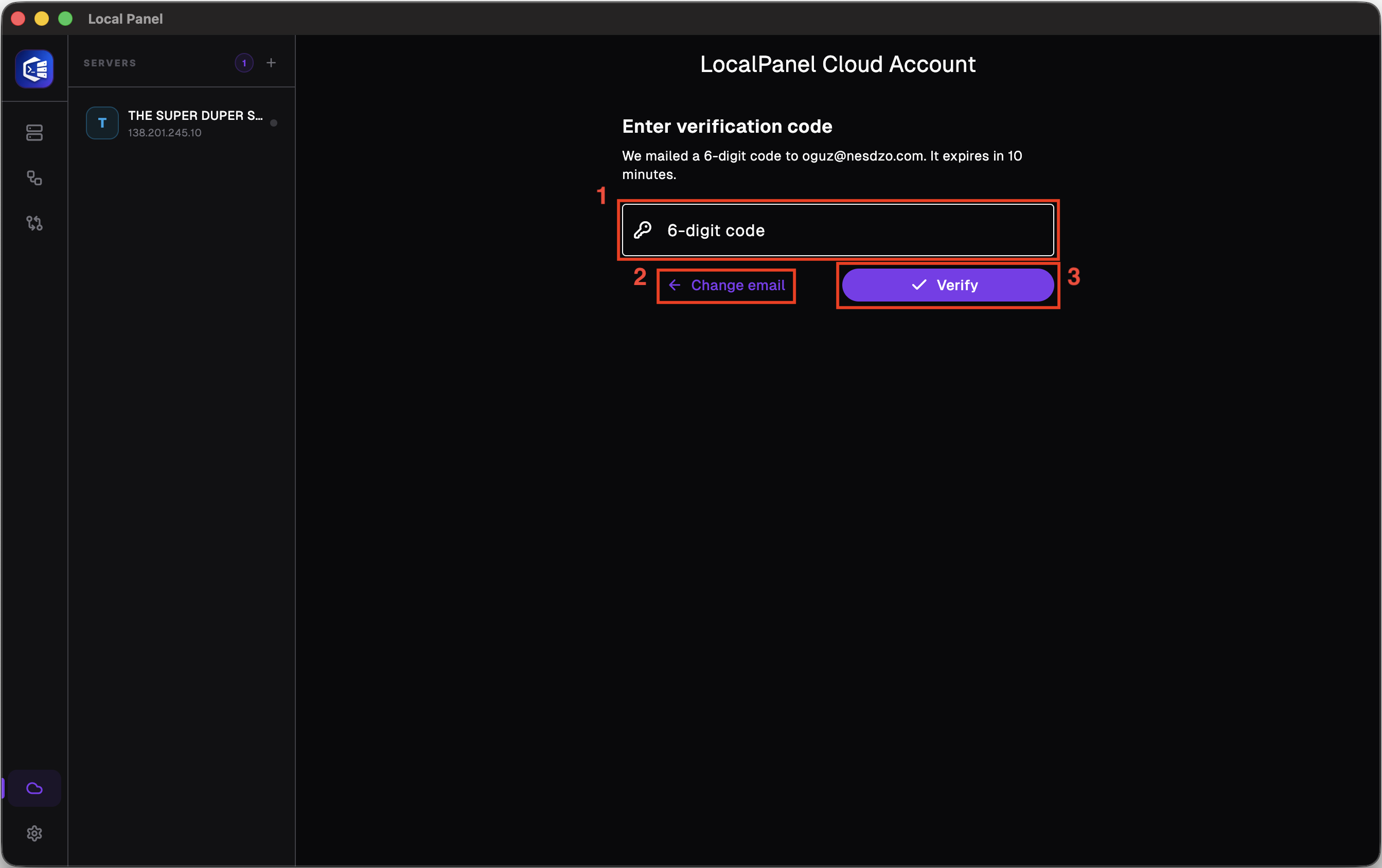
On this screen, you must enter the code sent to your email address. If you have entered your email address incorrectly, you can correct it.
Number 1: 6-digit code field: please enter the code you received by email here.
Number 2: If you have entered your email address incorrectly, you can use this button to go back and correct it.
Number 3: Once you have entered your code, you can log in to your account using this button.
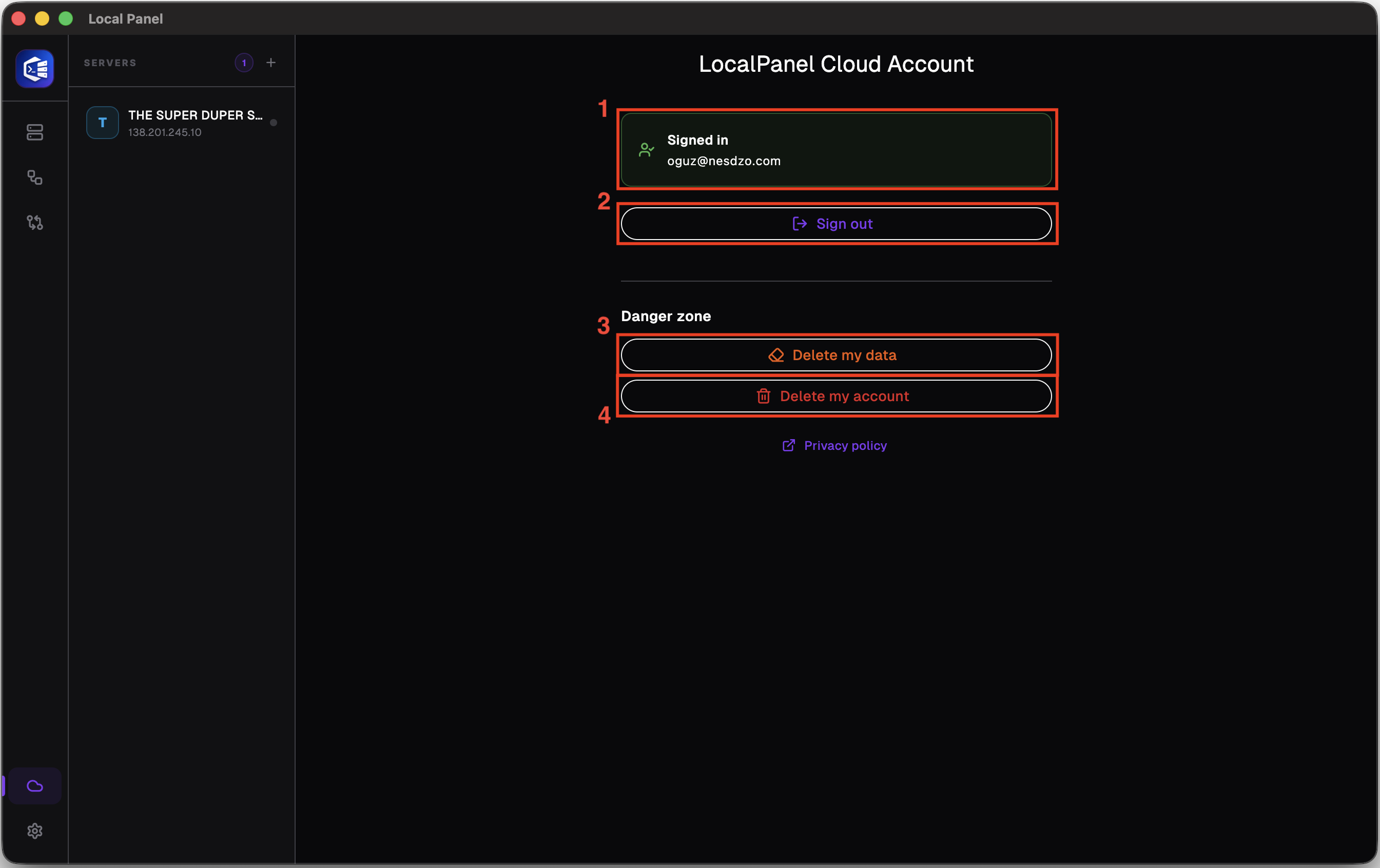
If you are able to log in or register without any problems, you will be taken to this screen.
Number 1: The field indicating that you are logged in
Number 2: The button that allows you to log out of your account
Number 3: The button that allows you to request the deletion of data collected about you does not delete your account or log you out; it simply deletes your stored data. Even if you do not click this button, your data will be automatically deleted once every 90 days.
Number 4: This is the button that allows you to delete your account and all your data.
Still stuck? Email contact@nesdzo.co.uk — we're happy to help.