 Local Panel by Nesdzo
Settings Screen
From the Settings screen, you can easily access, configure or adjust settings such as security and time-out durations. Here, we will explain what these settings are used for.
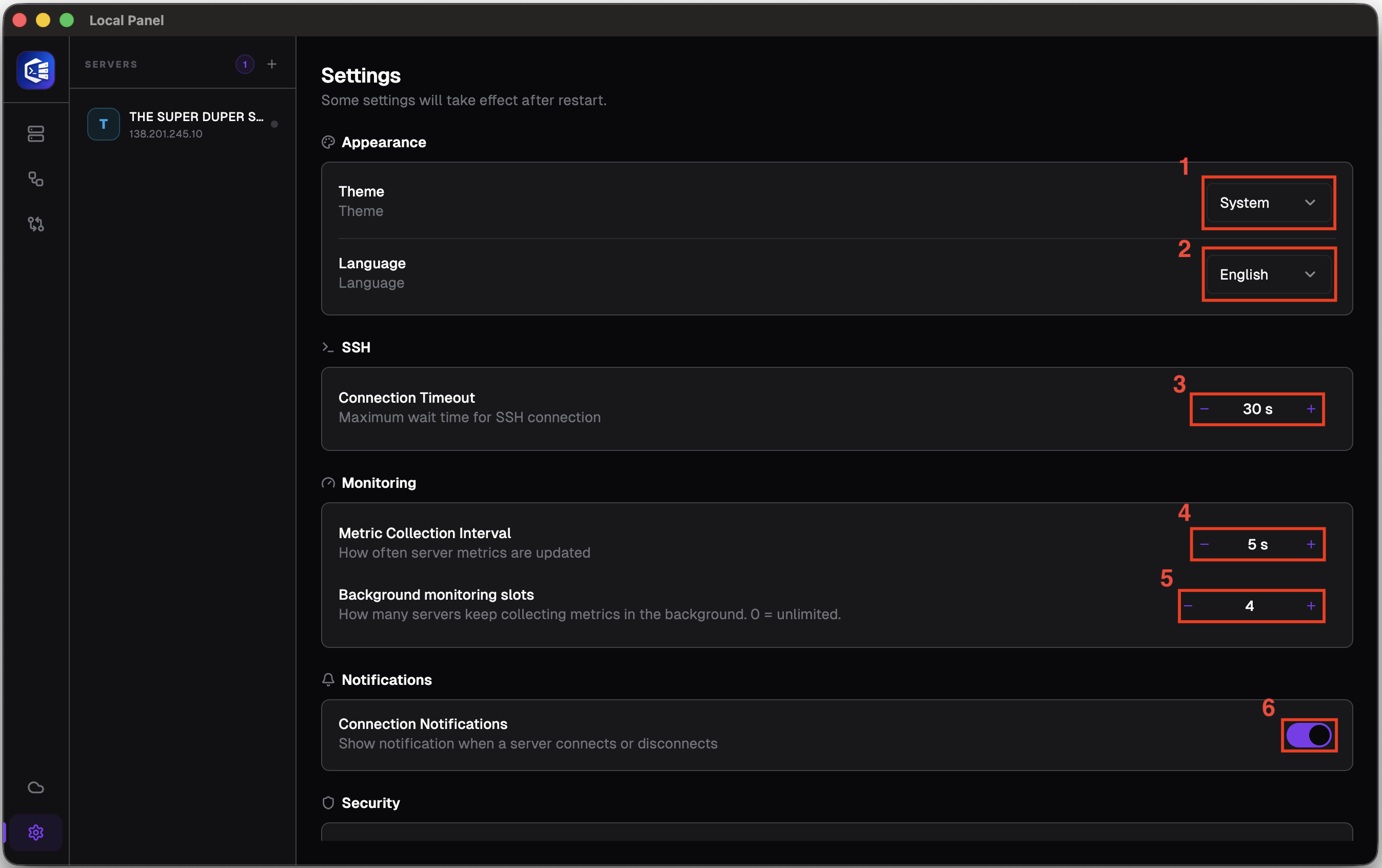
Number 1: The area where the app’s colour theme can be selected
Number 2: The field where you can choose from the available application languages
Number 3: The time allowed for attempting to connect to the server via SSH; if the server fails to respond within this time, the connection is terminated.
Number 4: The interval, in seconds, at which data will be collected from the servers you are connected to
Number 5: How many servers will be used to collect data in the background at the same time? This is very important because attempting to retrieve data from too many servers simultaneously can strain your device, overload its memory and cause it to stutter or freeze.
Number 6: If you wish to receive notifications, this option must be enabled.
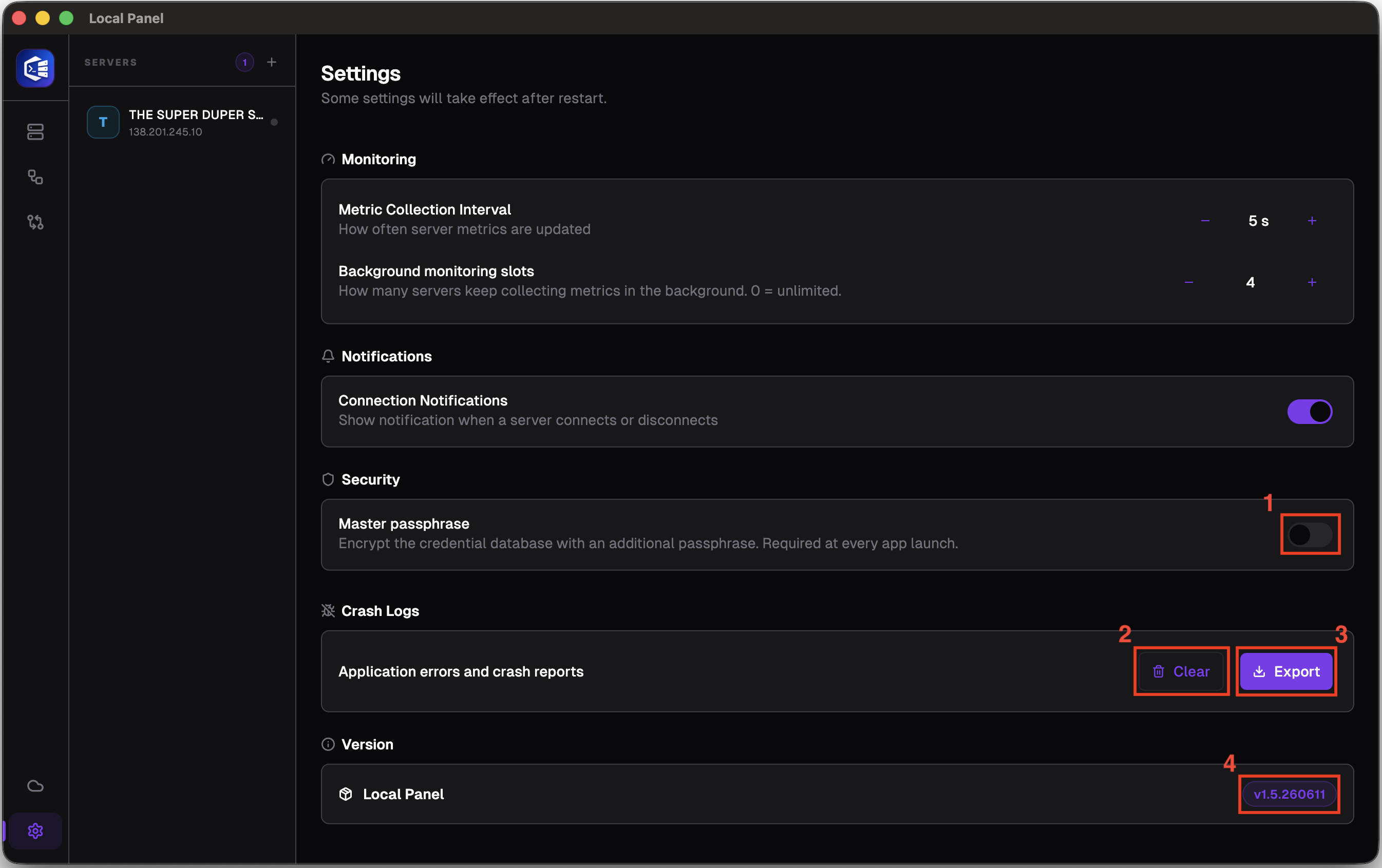
Number 1: To prevent anyone accessing your computer from gaining immediate access to your server, you can set a password for the application. When you enable this feature, you will be asked for an 8-character password of your choice – which cannot even be recovered – every time the application is opened; you will also be able to lock the application at any time you wish.
Number 2: If you think the file has become too large due to issues such as errors, bugs or connection problems, you can always use this button to delete it completely.
Number 3: If you encounter an unexpected error within the app and wish to report it to Nesdzo, you can save the error report to your computer here.
Number 4: The version of Local Panel you are currently using
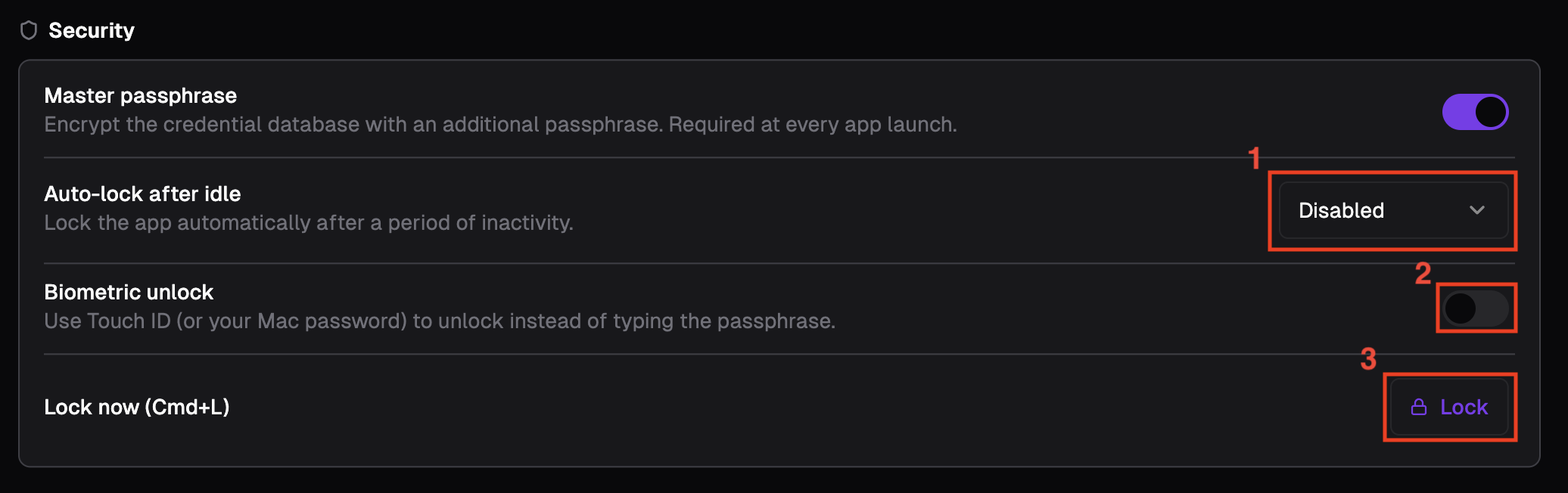
When you enable Master Passphrase, new settings become available. Let’s talk about those as well.
Number 1: In this section, you can select a time period for the app to lock automatically. If you do not use the app at all during the selected time period, it will lock automatically and you will need to enter your password to access your servers again.
Number 2: You will see this option if your device supports biometric unlocking. You can access the app using your device’s biometric authentication without having to enter your passcode. However, if you forget your passcode, you will not be able to remove Master Passphrase.
Number 3: You can use the button here to lock the application, or you can use the CTRL + L or CMD + L shortcuts.
Still stuck? Email contact@nesdzo.co.uk — we're happy to help.