 Local Panel by Nesdzo
Quick Start
Local Panel is a piece of software available for macOS and Windows that allows you to manage multiple servers by connecting to any server you can access via SSH.
This article will introduce you to Local Panel and show you what you can do with it.
Prerequisites:
- Local Panel
- A server with SSH
- Server IP/hostname
- SSH username
- SSH password or private key
So that you aren’t left with a blank screen when you first open the Local Panel, let’s add our first servers together.
Total Time: 5 minutes
-
Open Local Panel
Open Local Panel application in your macOS or Windows computer.
-
Add Server
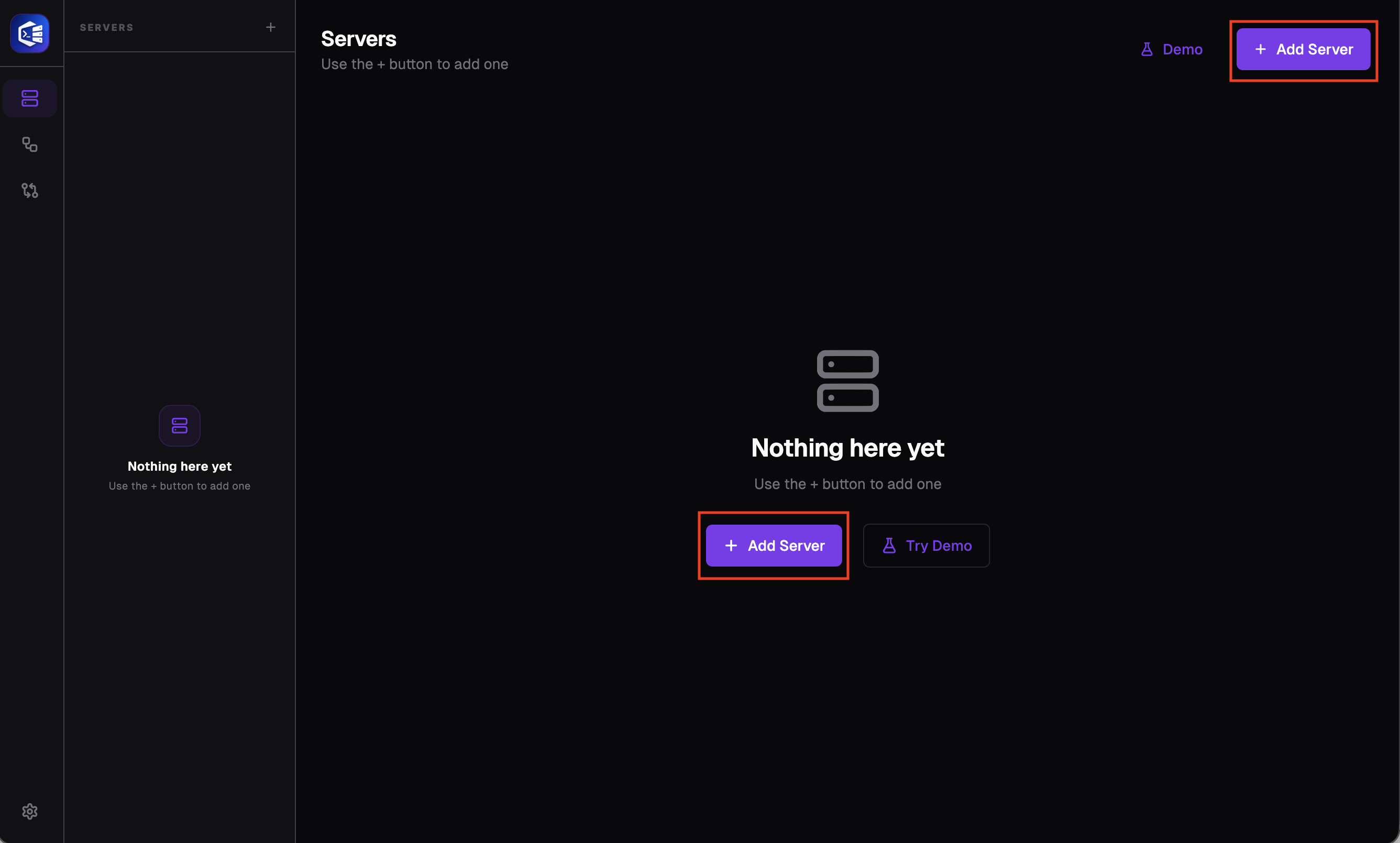
Please click the ‘+ Add Server’ button located in the centre of the screen or in the top-right corner.
-
Fill in all the fields
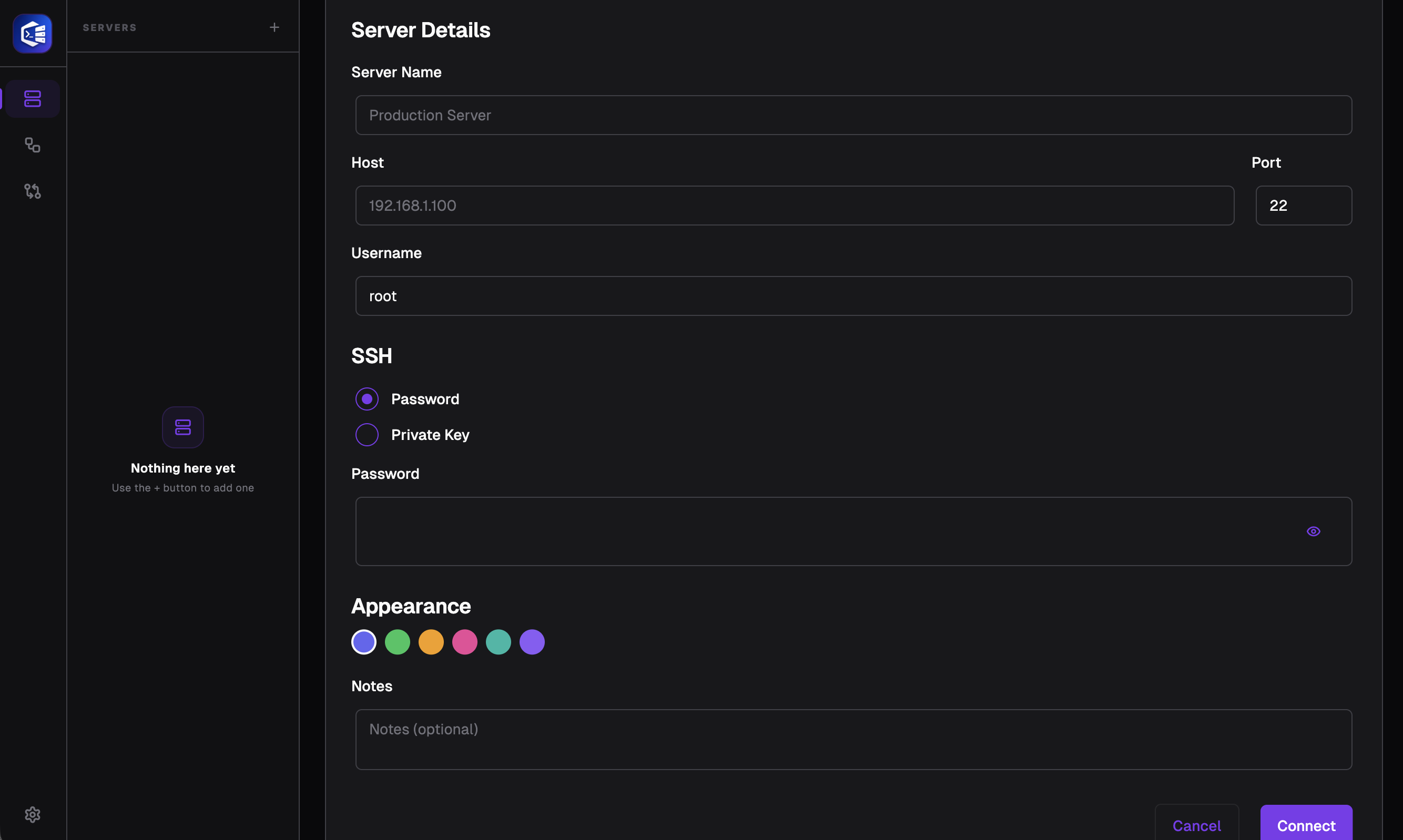
Server Name – You can enter any name you like to make it easier for you to identify.
Host – Your server’s IP address or the URL for SSH access
Port – The port on your server that accepts SSH connections
Username – Your username for the SSH connection
Password or Private Key – Select Password if you use a password for SSH. Select Private Key if you use an SSH key file (e.g.,.pemor.ppk).
Appearance – The colour you want your server to appear in the Local Panel
Notes – Any notes you wish to add for the server you are addingOnce you have entered all these values, you can connect to your server by clicking the ‘Connect’ button.
-
Connect your new server
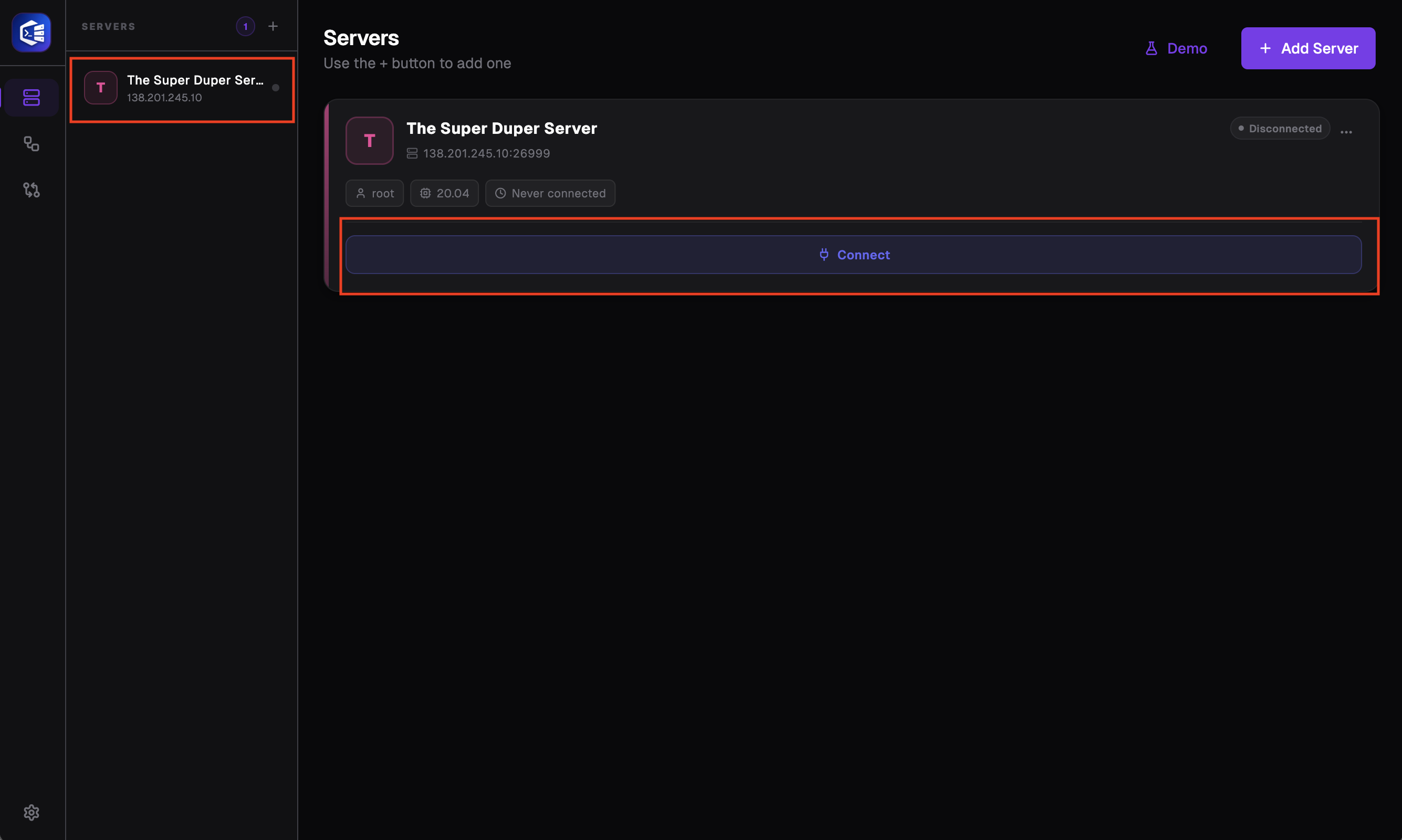
You can connect to the server you have just added by clicking on one of the two locations shown in the image.
-
Open the terminal
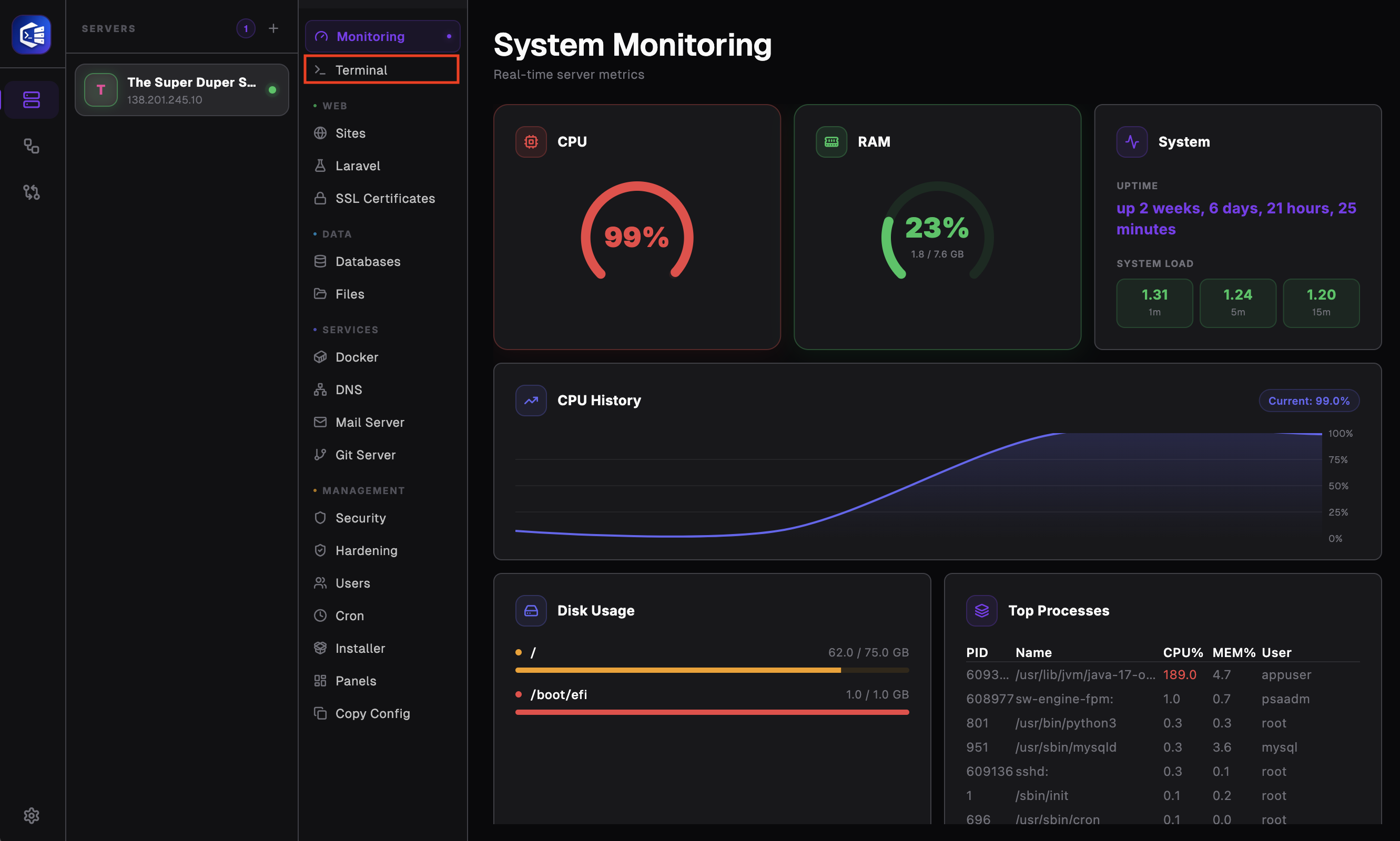
Once you have successfully connected to the server, select the terminal tab located under the ‘Monitor’ tab on the left-hand side.
-
Run a command on terminal
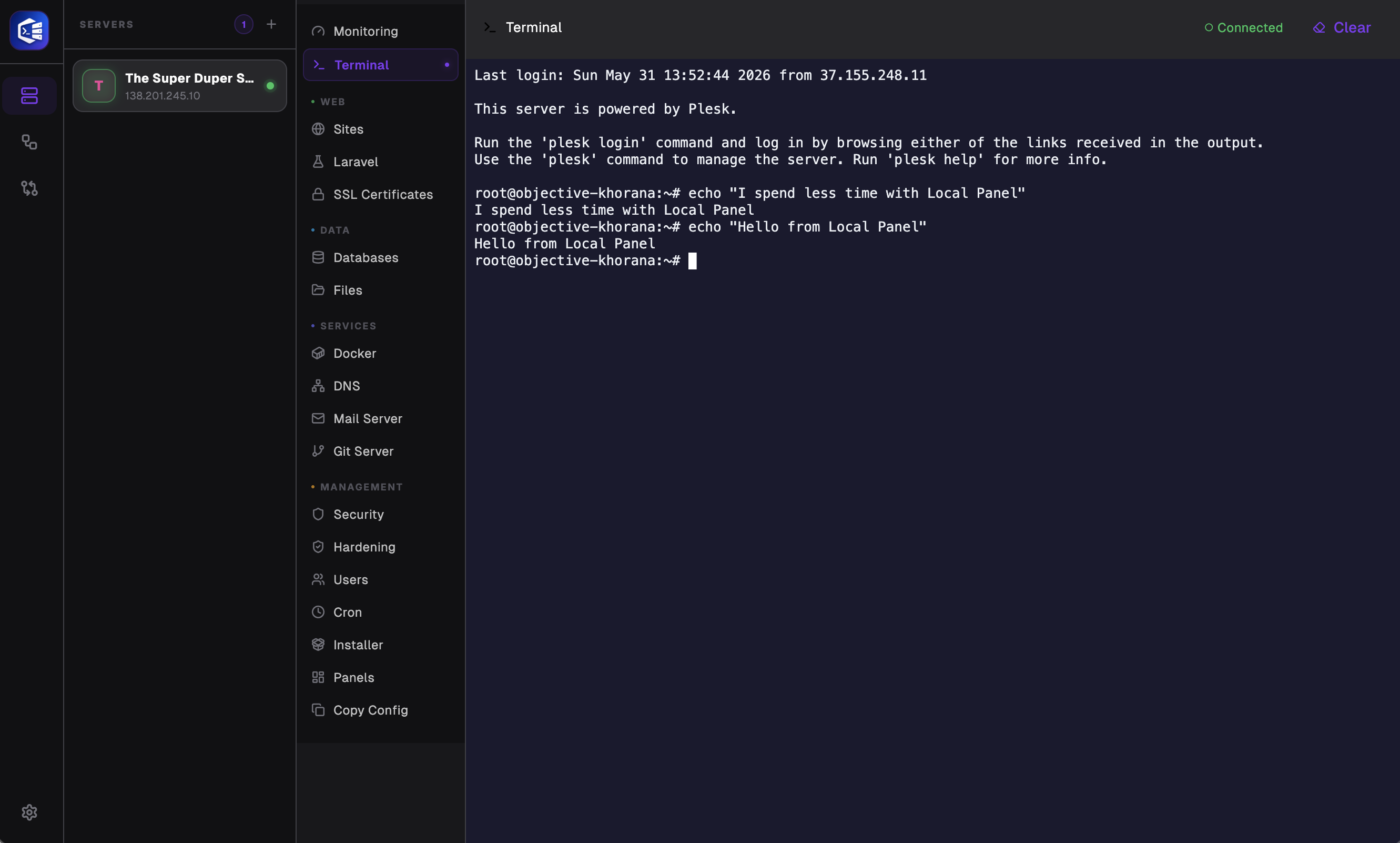
Once we have clicked on the terminal to ensure that the cursor is active in the terminal, we run this command:
echo "Hello from Local Panel"
Troubleshooting
I’m getting the error: ‘Could not connect to server. Check the host, port and network connection.’
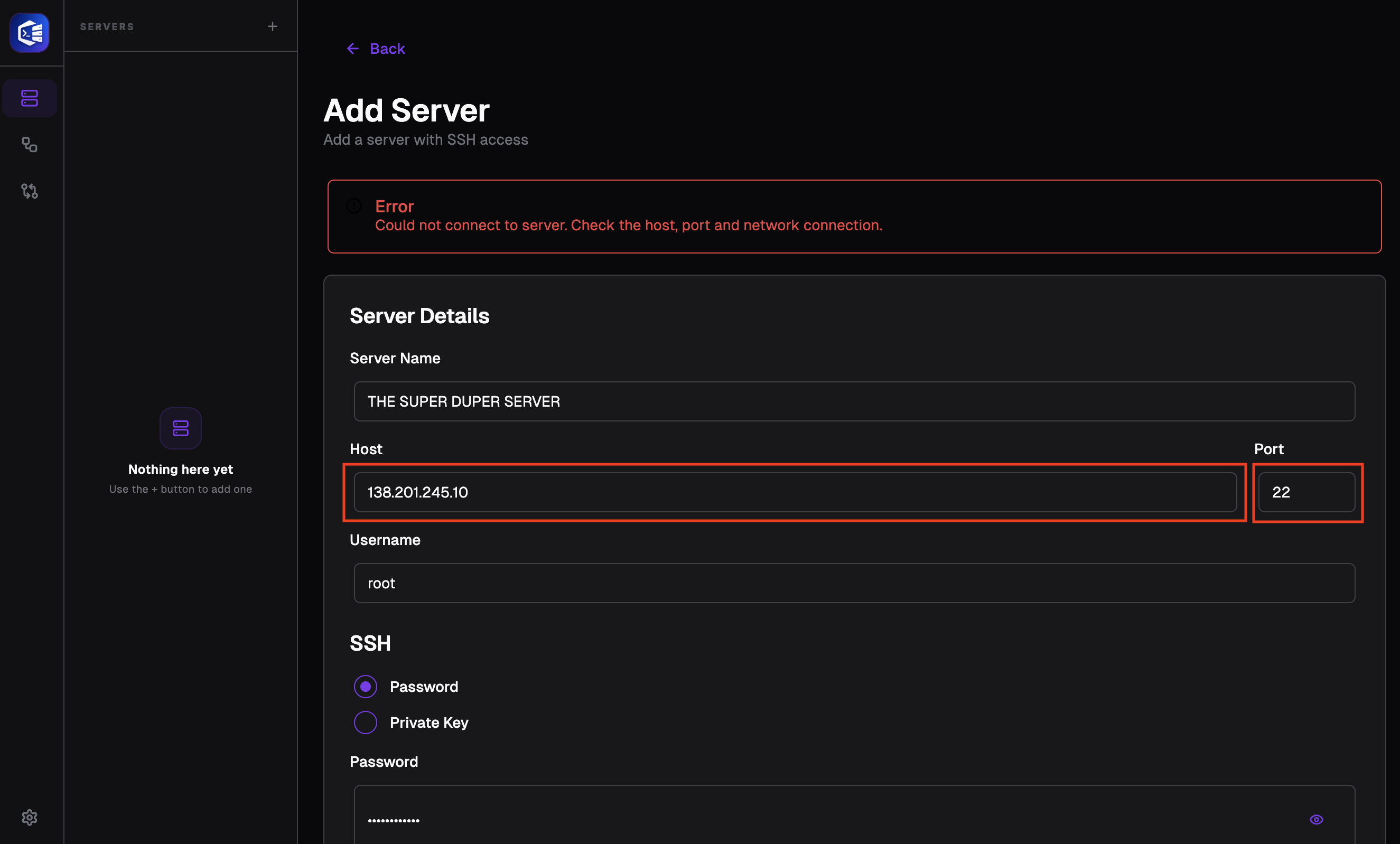
You may receive this error if there is a problem with the host or port you have entered. We also recommend that you check your internet connection.
I’m getting the error: ‘Authentication failed. Please check your username, password or SSH key.’
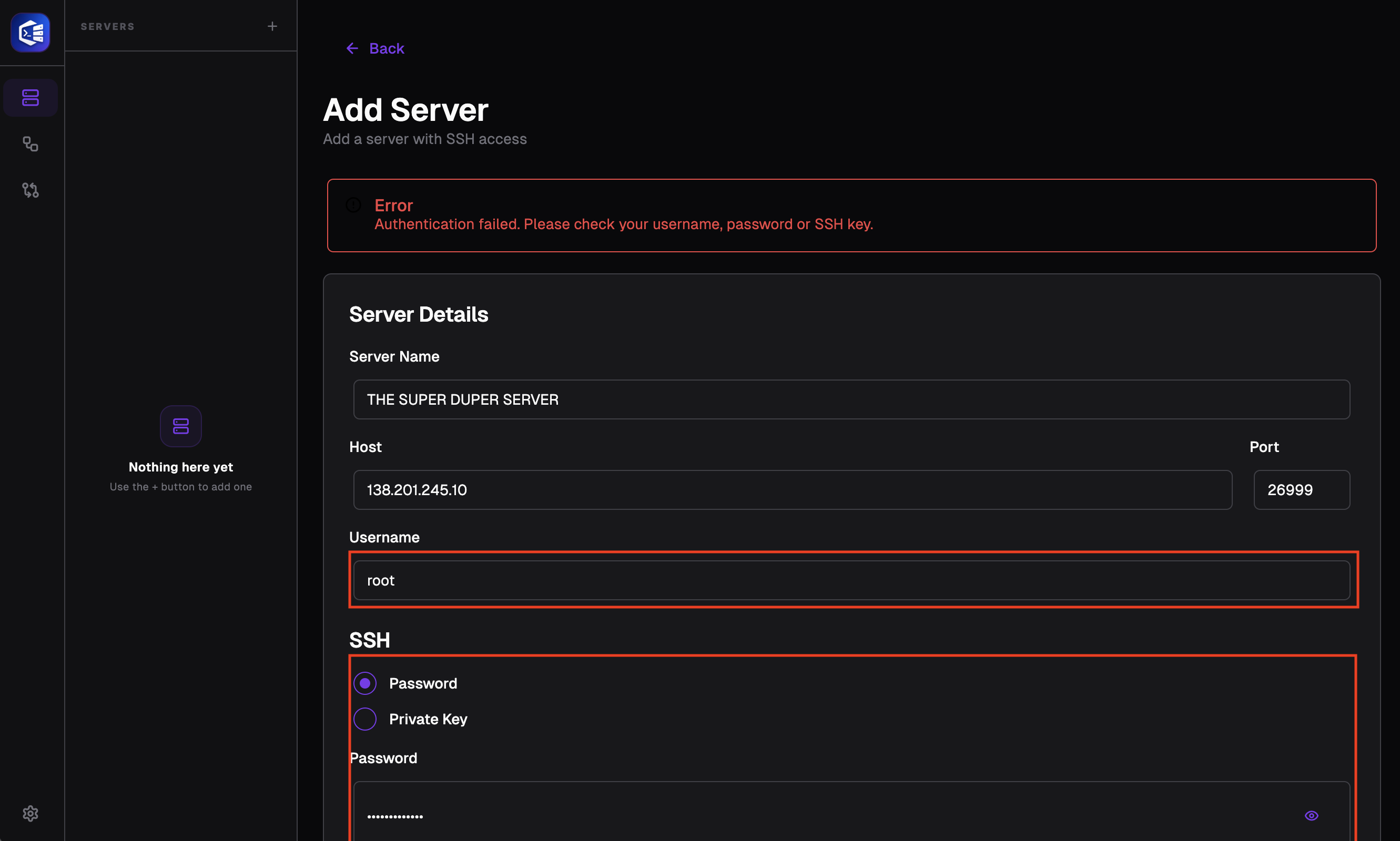
If you are receiving this error, your username, or your SSH key file (if you are using one), or your SSH password (if you are using one) may be incorrect; please ensure that your username and password are correct.
Still stuck? Email contact@nesdzo.co.uk — we're happy to help.