 Local Panel by Nesdzo
Deploy a PHP Website
Deploying a website on servers you connect to via SSH can be quite challenging. Using this example, we will show you how to carry out these tasks easily using Local Panel.
You can access the PHP example we’ve used in this example via this link.
Total Time: 8 minutes
Files Tab
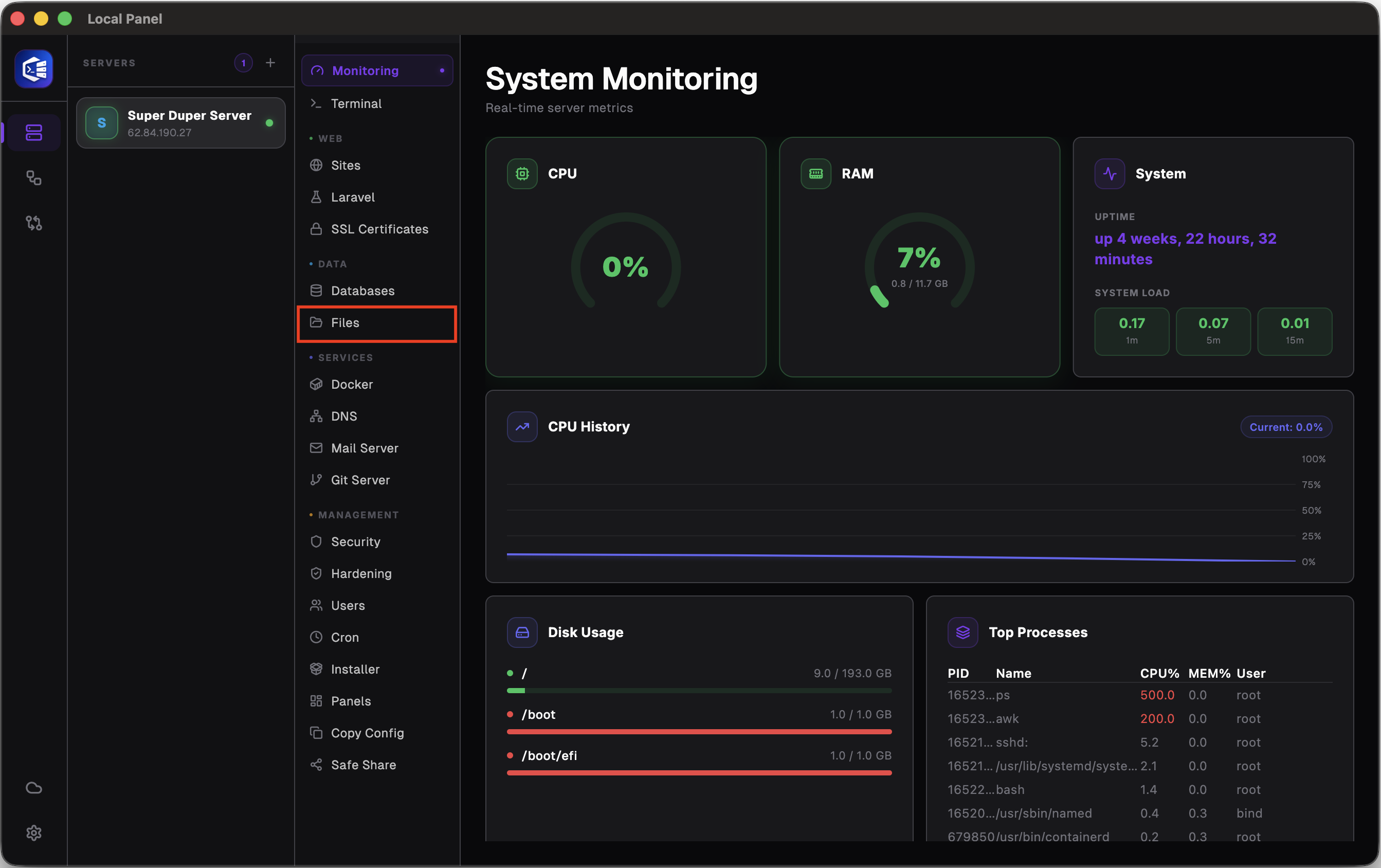
Once you have connected to your server, go to ‘Files’.
Upload Files
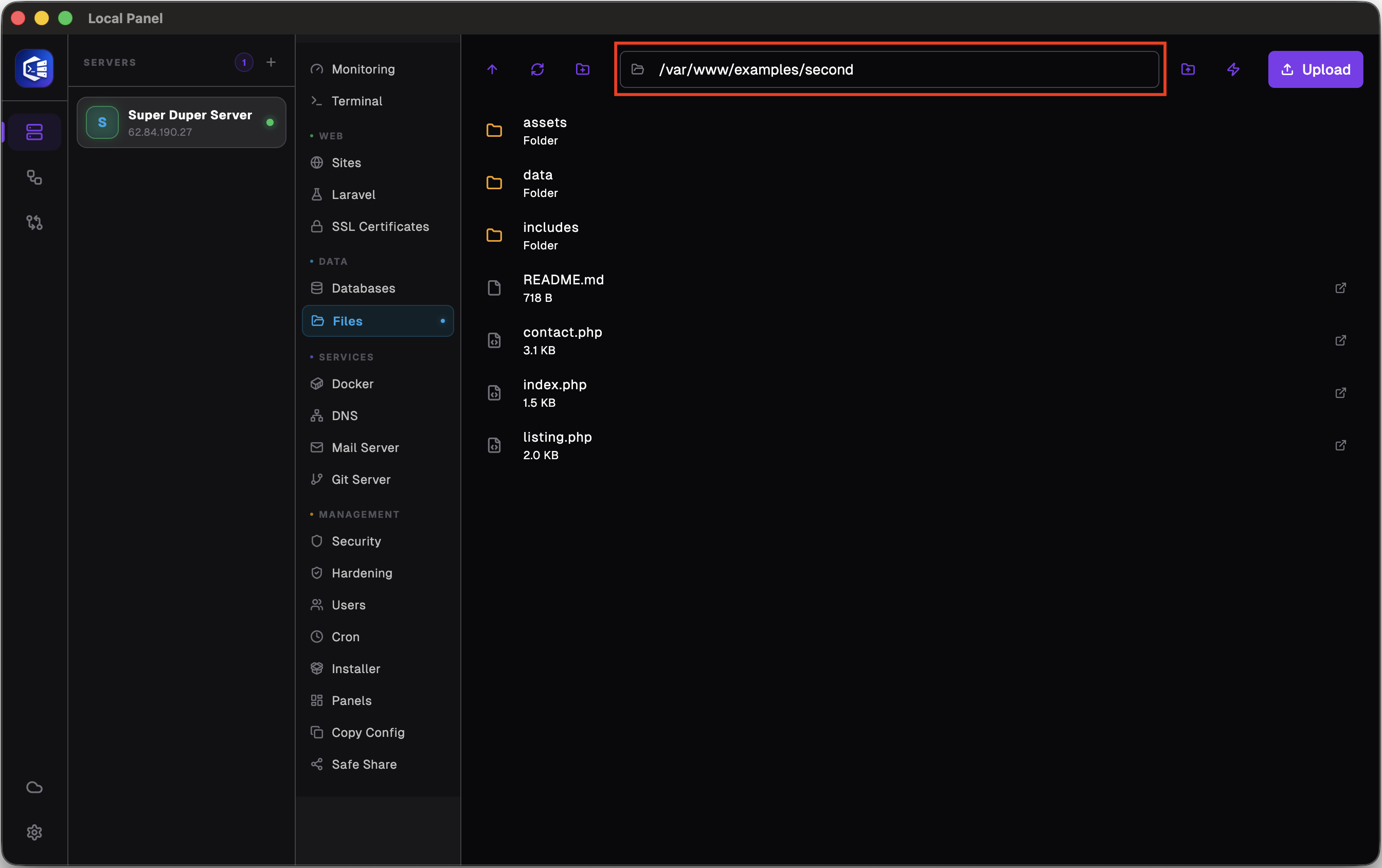
Save the example you have downloaded from the link to a folder of your choice and copy the path to that folder.
Sites Tab
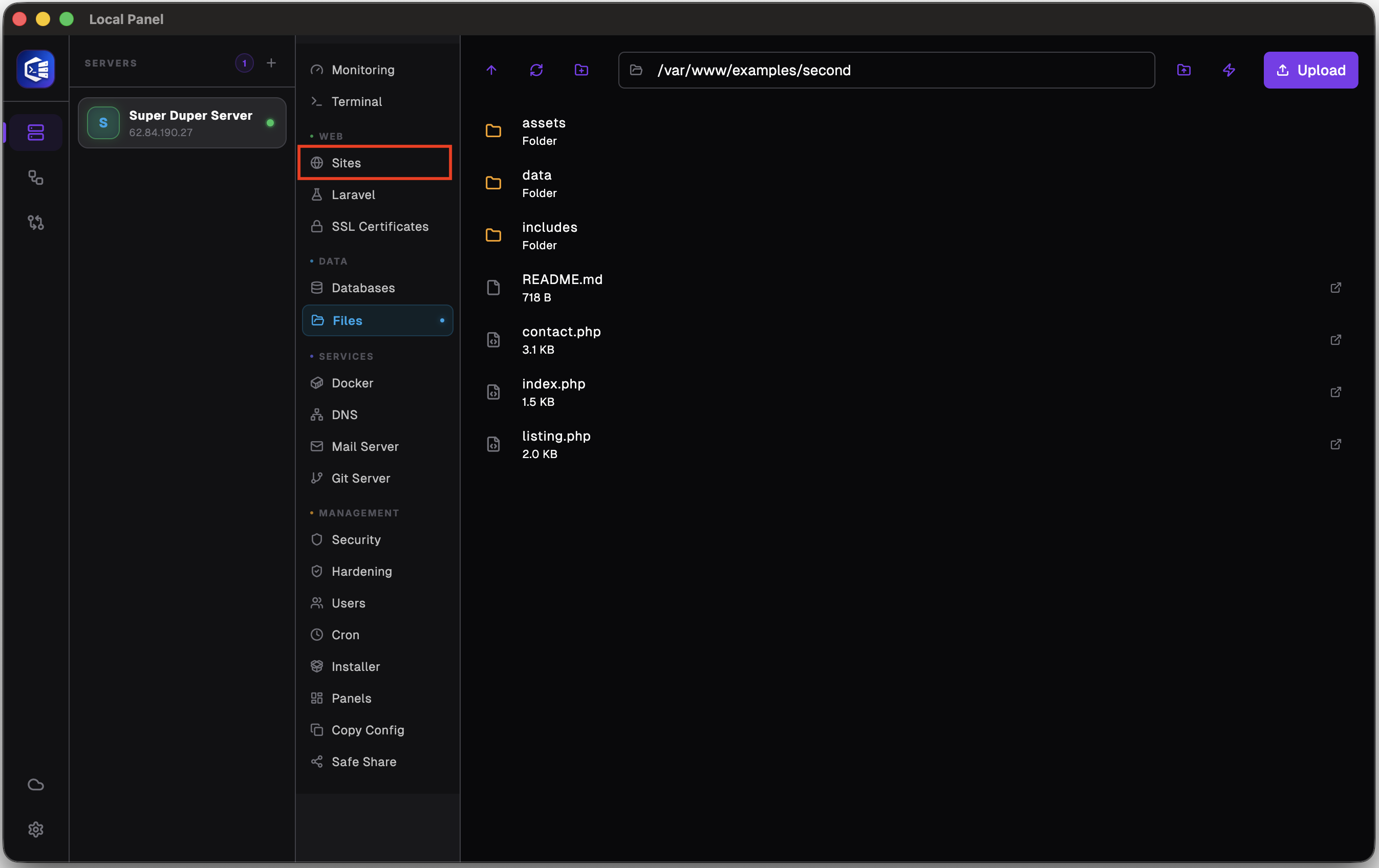
To configure Nginx settings, go to the “Sites” tab.
Add New Site
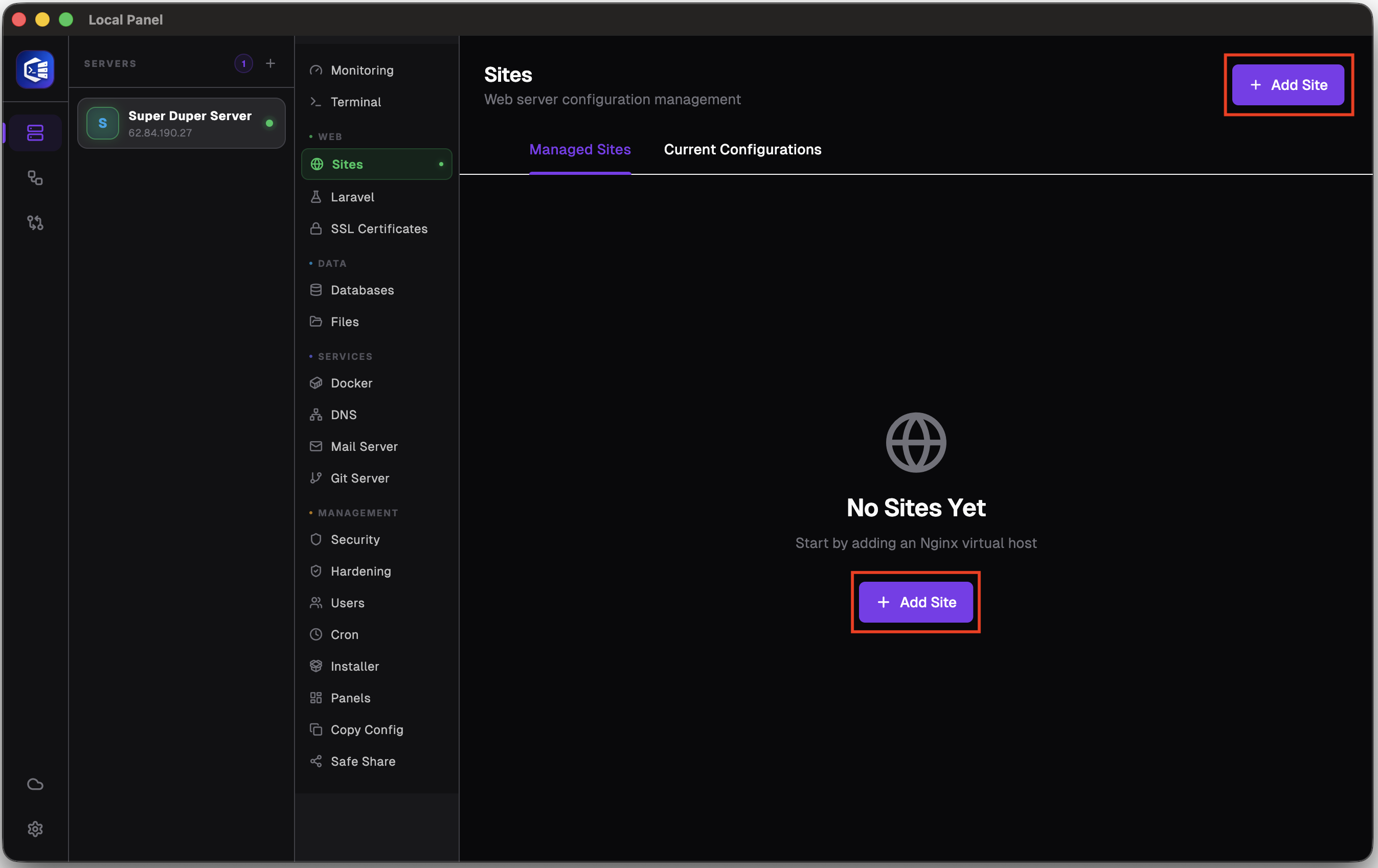
To create a new configuration, click one of the two “+ Add Site” buttons
Configure
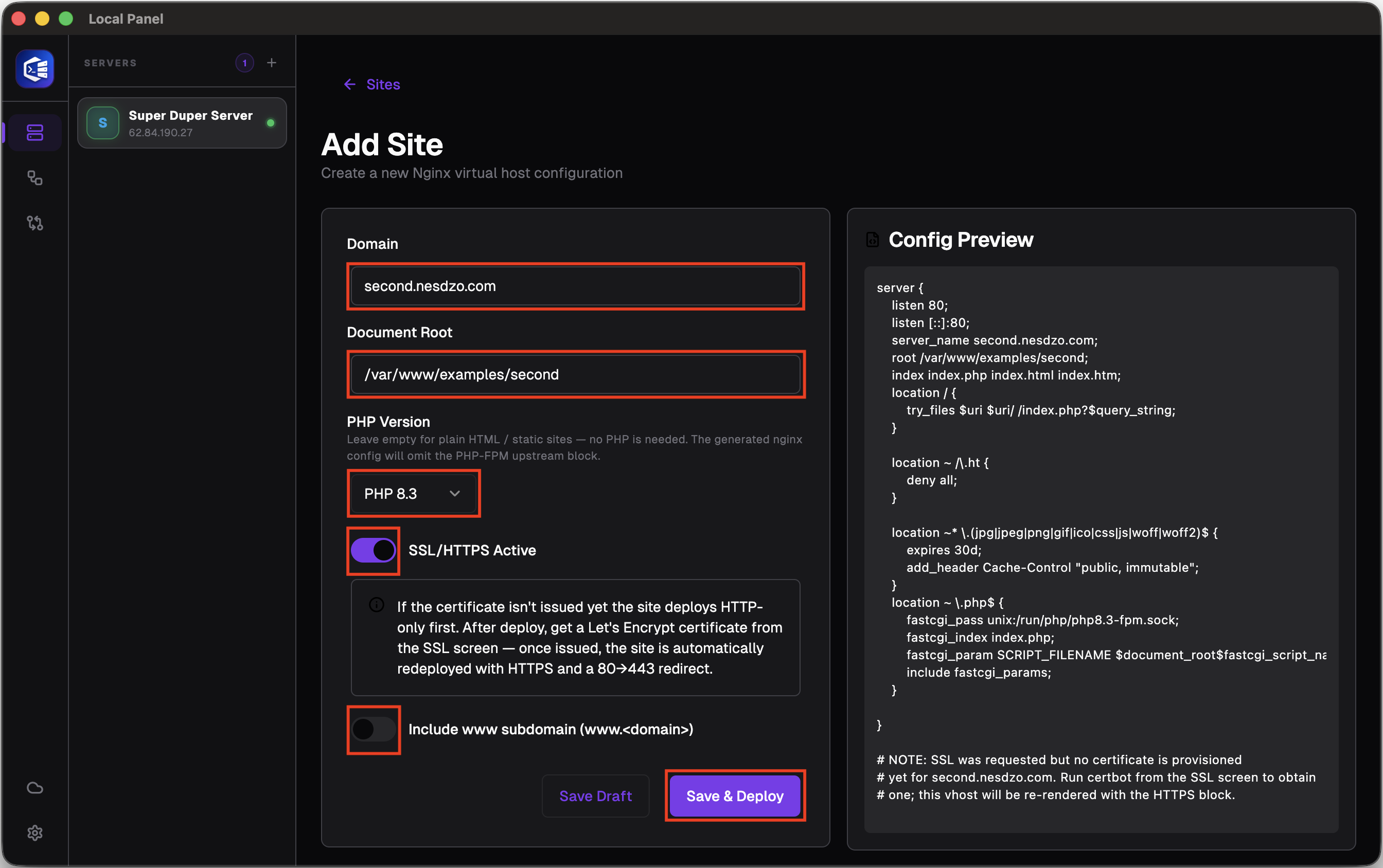
You can set up your Nginx configuration by following the steps outlined in the highlighted sections and creating a similar configuration for your own domain.
Configure DNS settings
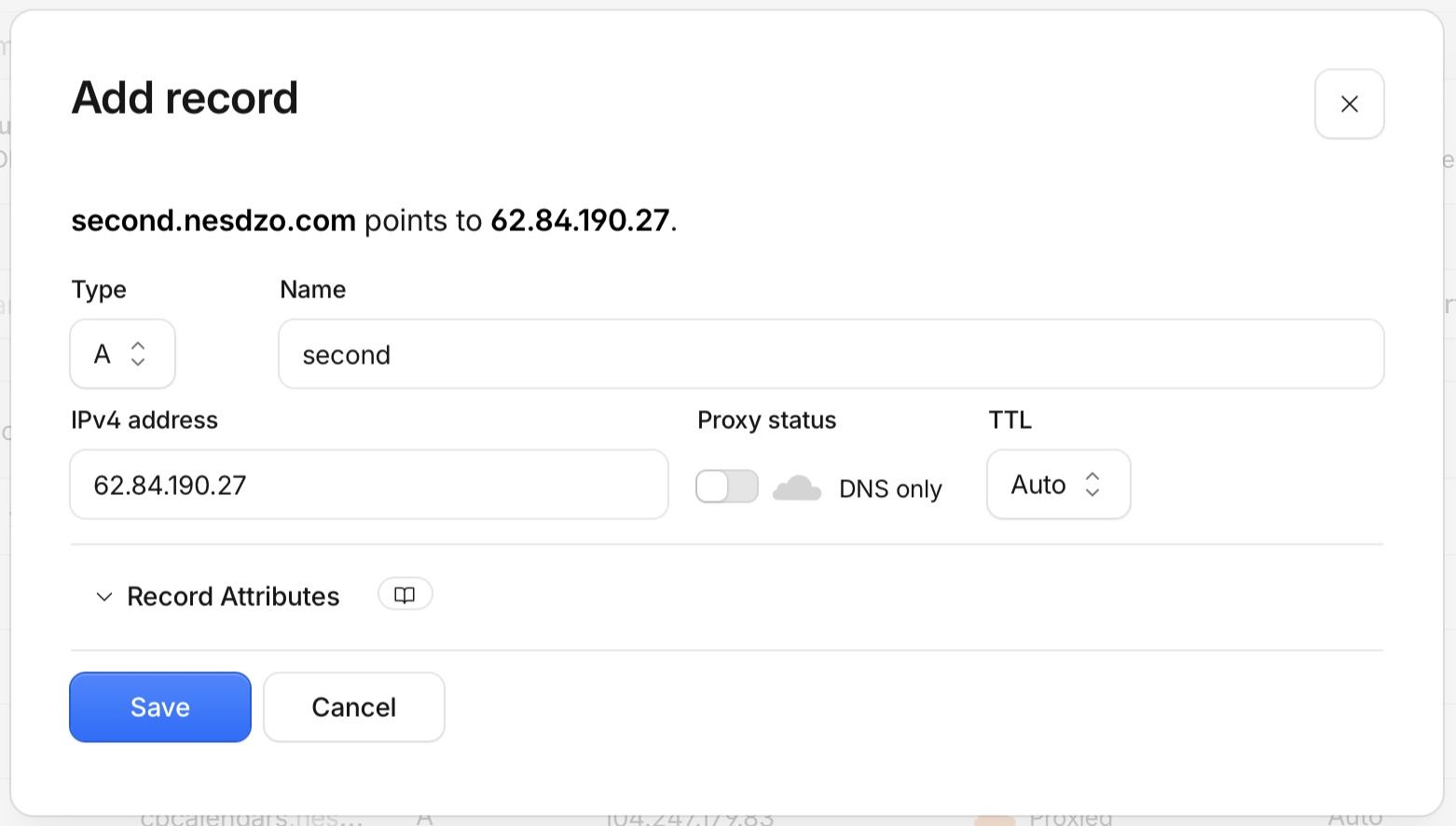
Add an A record for the domain you have added, pointing to your server’s IP address. In some cases, it may take a little while for these records to take effect.
Deploy
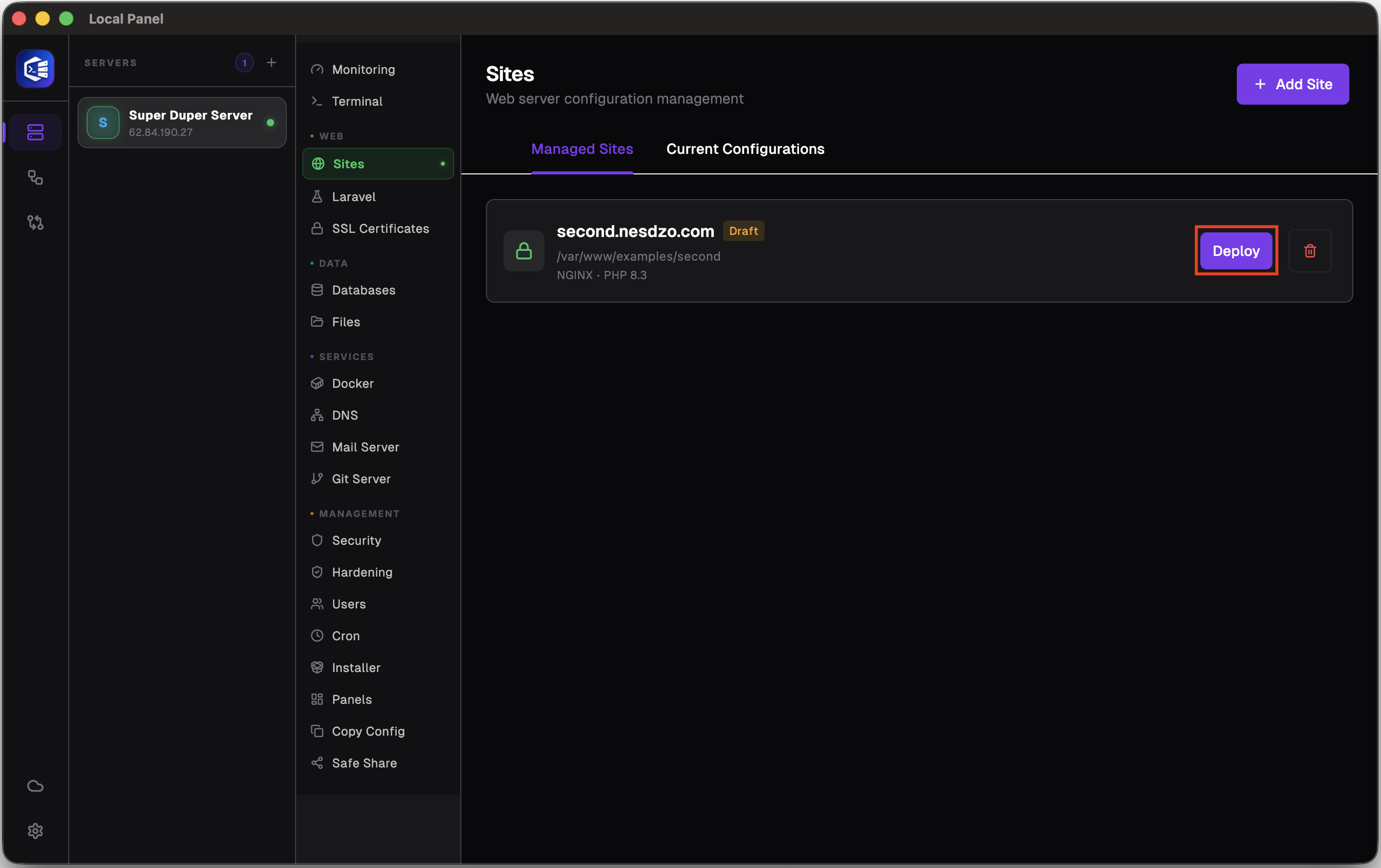
Please click the “Deploy” button.
SSL flow
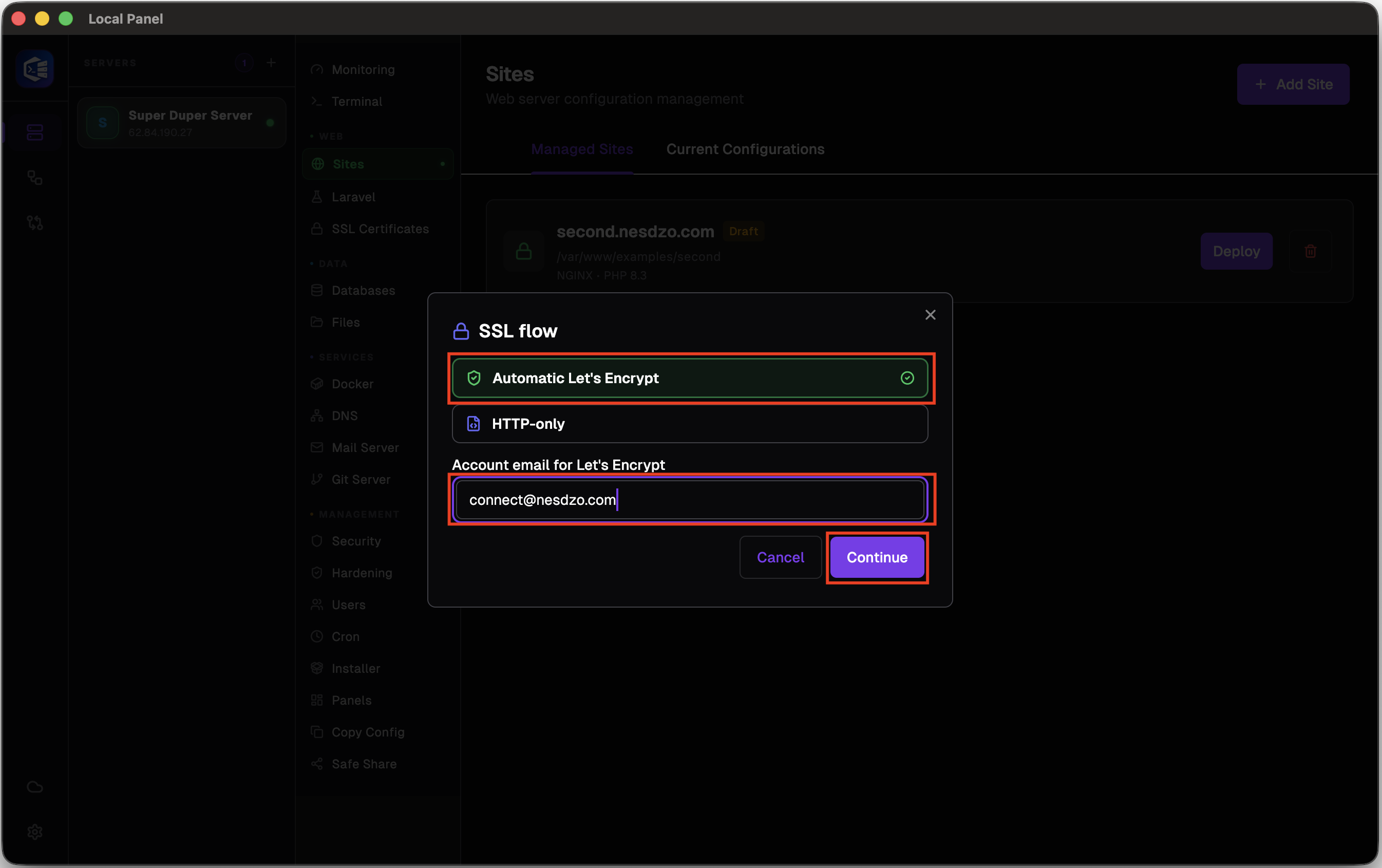
With “Automatic Let’s Encrypt” selected, enter your email address and continue.
Successful SSL
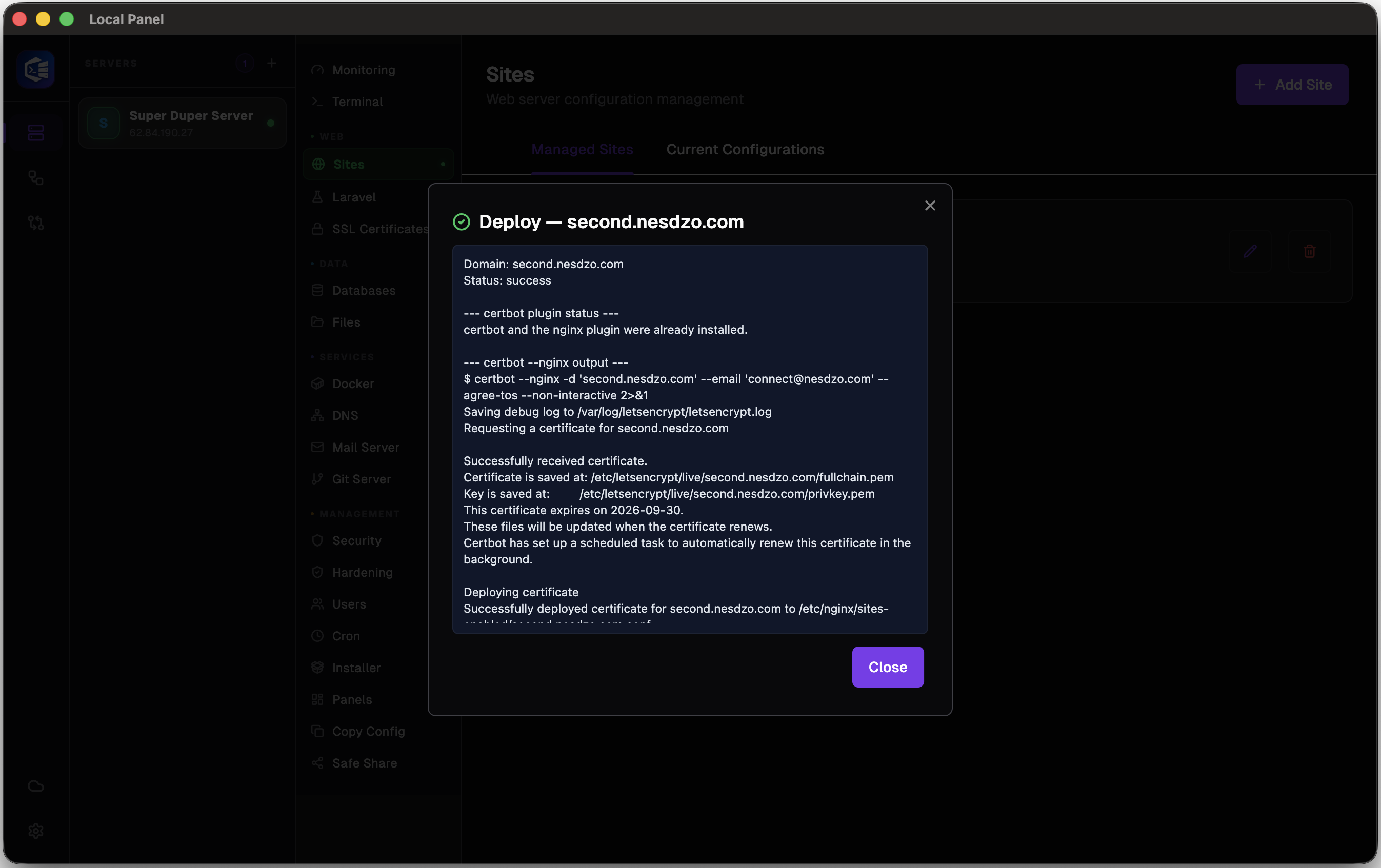
This screen indicates that SSL has been successfully configured. However, we recommend that you check the bottom of the message. In some cases, failed operations may appear to have been successful.
Website
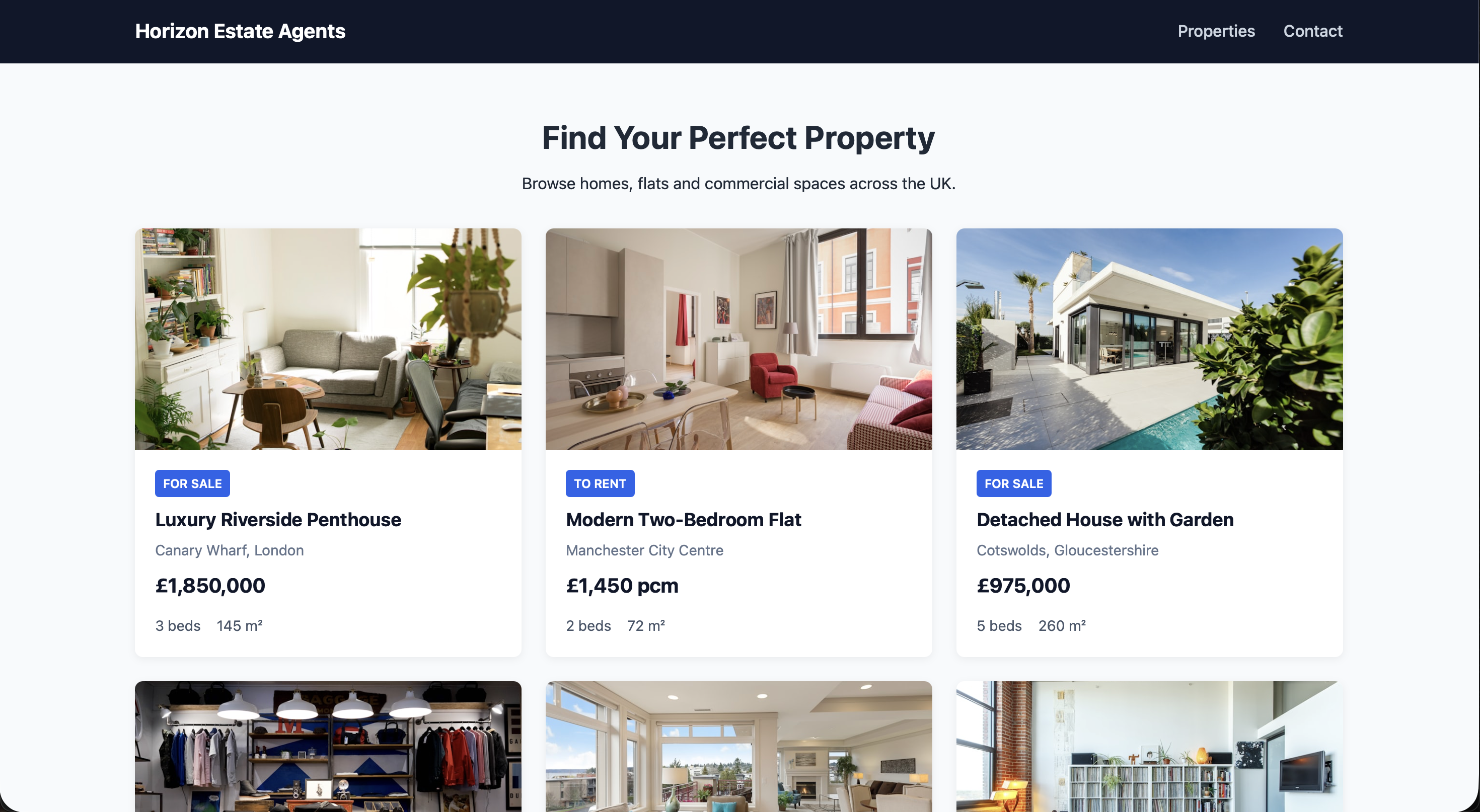
If you have successfully completed each step, when you visit the website where you configured the DNS settings, you will see a result similar to the one shown in the image.
Still stuck? Email contact@nesdzo.co.uk — we're happy to help.