 Local Panel by Nesdzo
Command Node
With the command node – one of our most basic nodes, designed for advanced users – you can type in and run your commands manually.
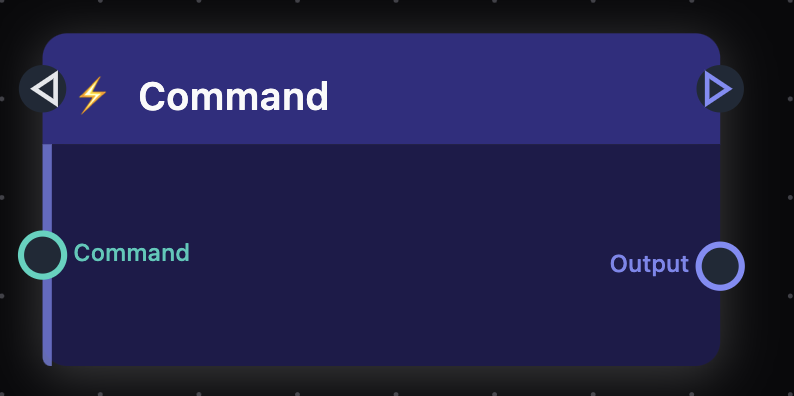
There is one command input and one output port so that you can use the command input and the output produced by the command.
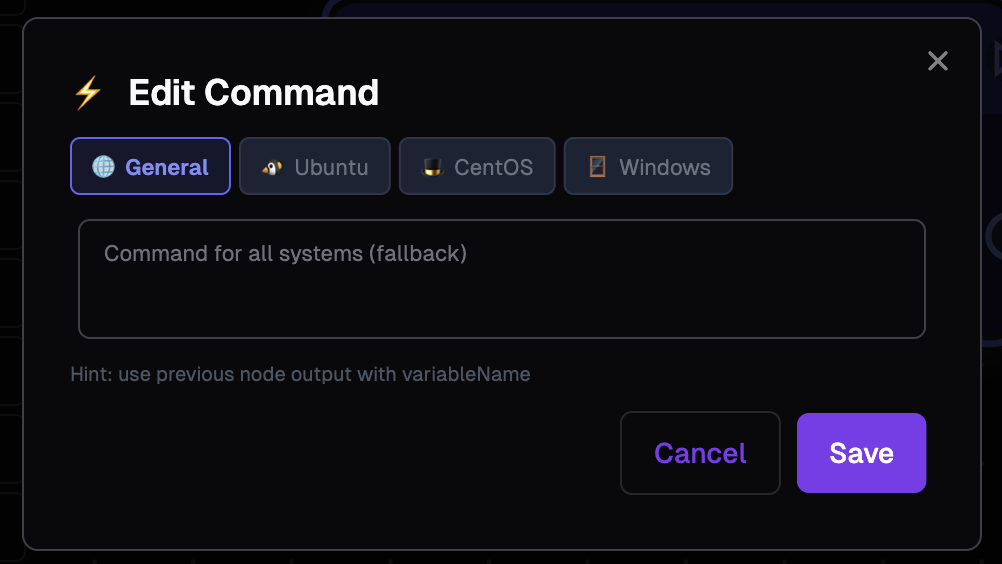
In the ‘Edit’ section, you can either enter your operating system-specific code or simply enter your code in the ‘General’ section and leave the others blank. Once you have entered your code, please do not forget to save it.
Basic Example
Let’s look at a simple example of using `echo` to print the text of our choice to the terminal.
Total Time: 1 minute
Edit Command
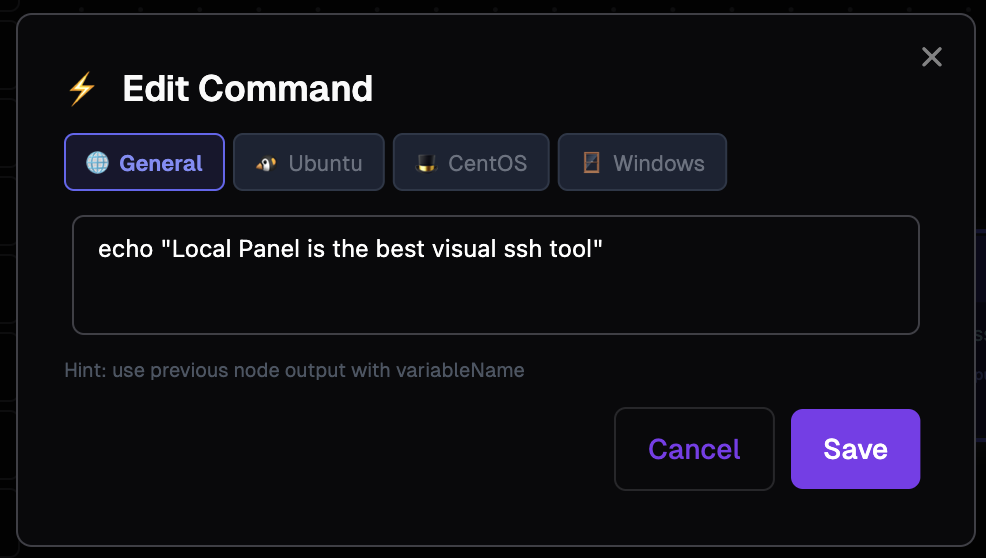
Enter this echo "Local Panel is the best visual ssh tool" command in the ‘General’ section, then save it using the ‘Save’ button.
Connections
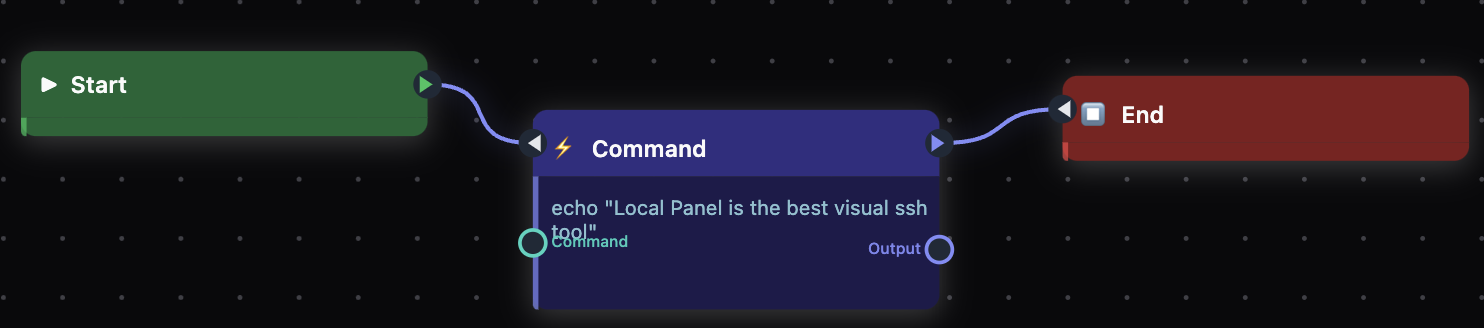
You can set up the connections as shown in the image: from the start node to the command node, and from there to the end node.
Run the example
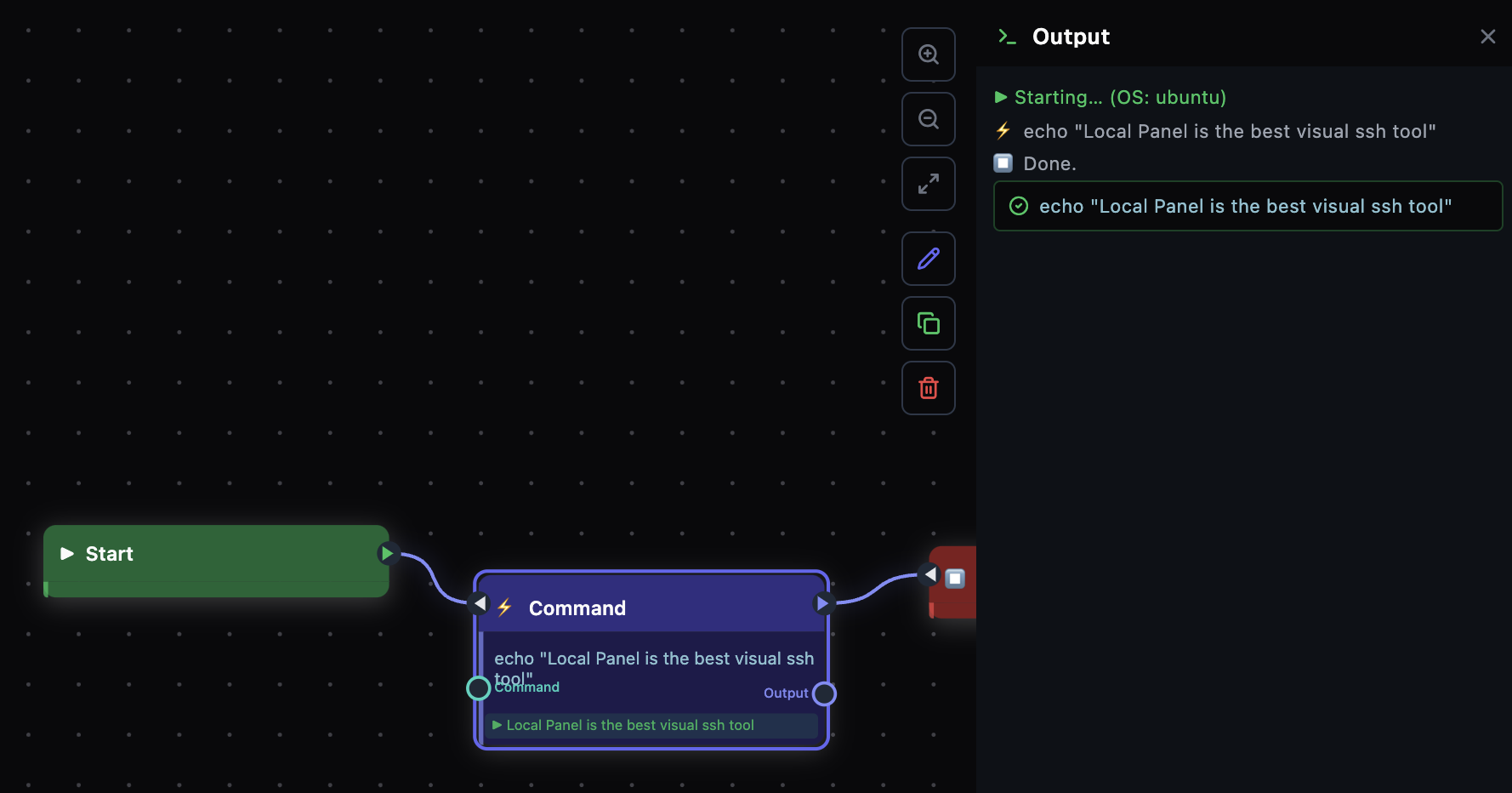
By clicking the ‘Run’ button, you can execute the command you have written on the server you are connected to and view the result immediately. If you have successfully completed each step, you should see a result similar to the one shown in the image.
Still stuck? Email contact@nesdzo.co.uk — we're happy to help.